
Infor EPM 12 on-premise installs as a farm: a set of Windows services spread across servers. This guide builds a three-server farm (Application, Database, OLAP) on Windows Server 2025 and SQL Server 2022. The new farm runs side by side with EPM 11, and the guide also fixes the error that blocks the OLAP server from joining.
Tested on Infor EPM 2026.10.01 (services build 12.26.10.5), October 2026.
In short
- Side by side: EPM 11 and EPM 12 cannot share a machine, so EPM 12 goes on new servers and EPM 11 stays as the fallback.
- Platforms: Infor recommends Windows Server 2025 and SQL Server 2022, but it does not support SQL Server 2016.
- Three servers: Application, Database and a dedicated OLAP server, with scaling servers only as users grow.
- Preparation: a SQL Authentication login, open ports, one Service Controller account and shared OLAP folders come first.
- The error to avoid: local OLAP folders block the OLAP server from joining, so share them and switch to UNC paths.
- Two files to protect: store Master.keys, Connection.farmprofile and their passwords somewhere secured and backed up.
In this guide
- How Infor EPM 12 version numbers work
- Upgrading EPM 11 to EPM 12 on the same server
- Supported Windows Server and SQL Server versions
- Three-server farm layout
- Prerequisites
- Firewall ports
- Installing the first server and creating the farm
- Configuring the farm in Farm Expert
- Joining the OLAP server
- The OLAP join error and its fix
- OLAP services on the OLAP server
- Checking the farm is working
- Before production
What does this Infor EPM 12 installation cover?
In brief, this is a clean three-server farm that runs side by side with EPM 11.
| Item | Value |
|---|---|
| Release | Infor Enterprise Performance Management 12, on-premise, one package from the Infor Product Download Center (2.9 GB for the release tested) |
| Platforms | Windows Server 2025 on all three servers, SQL Server 2022 Standard Edition for the farm databases |
| Topology | Three servers: Application server, Database server, OLAP server. Standalone farm with LDAP web access security |
| Directory sign-in | LDAP to Active Directory on port 389, set up after the install and covered in its own Infor EPM 12 LDAP guide |
| OLAP folders | Database central directory shared from the OLAP server, backup directory shared from the Application server, so the OLAP data and its backups sit on separate machines |
| Approach | Side by side: a clean EPM 12 install on a new farm, with EPM 11 kept running as the fallback until the cutover sign-off |
Last updated: October 2026. Reviewed by: Cipher Infor EPM consulting team.
If you are new to the product, start with what Infor EPM is. This article is the installation itself. It comes from a test farm built in October 2026, and it names every screen and lists every port. Cipher implements Infor EPM. However, the ERP and the other business systems that feed a farm like this one are sources: Cipher does not implement or resell them, so they are out of scope here. Moving reports, models and ImportMaster jobs from EPM 11 to the new farm is also a separate step, and this guide does not cover it.
How do Infor EPM 12 version numbers work?
Every Infor EPM 12 on-premise release carries three numbers: a release name in year.month form, an internal version line in the 12.xx series, and a services build. Support tickets, the installer and the documentation use them interchangeably. So it helps to know that all three point at the same release. For example, in the release tested here they are 2026.10.01, 12.26 and 12.26.10.5.
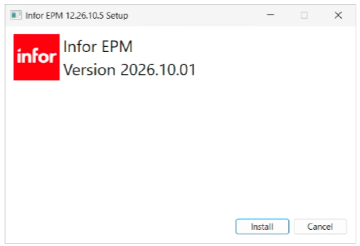
For that release, the headings of the package's Version.txt read "Infor EPM 12.26 Revision History" and "Infor EPM 2026.10.01 - On-Premises Release - October 2026". The setup window reads "Infor EPM 12.26.10.5 Setup" with "Infor EPM Version 2026.10.01" underneath. However, the documentation still says "Infor EPM 12.0.x" in places, which is the same product line under its older numbering.
- Release name: the year.month form Infor now uses for on-premise EPM releases, and also the name on the download.
- Internal version: the 12.xx version line in the revision history. That is why the installer and the services report numbers that start with it.
- Services build: the build of the EPM services and the setup program. Every service page in Service Expert also shows it.
- ImportMaster: Infor d/EPM ImportMaster 12 ships on its own version line, 26.2 HF in the release tested. It also comes in two editions, Stand-alone and Server Edition.
One naming leftover is worth knowing: the default install folder is still C:\Program Files\Infor\BI\, and only ImportMaster keeps the "Infor d/EPM" name. In contrast, everything else in this release says "Infor EPM".
Can you upgrade Infor EPM 11 to EPM 12 on the same server?
No. Infor does not support EPM 11 and EPM 12 on the same machine. So the supported way is side by side: EPM 12 goes on new servers, while EPM 11 keeps running where it is. In fact, Infor's installation overview says it does not support installing Infor BI 11.0.x and Infor EPM 12.0.x on the same machine.
Source: Infor EPM documentation, Administrator library, Installation: Overview of the installation process.
First, note the product name on the 11 line. Release 11 shipped as Infor BI 11.0.x, and many teams still call it that. Second, this installation followed the side-by-side route: a clean EPM 12 farm on three new servers. EPM 11 stays in service as the fallback until the team signs off the cutover. If you are still on Infor CPM or PM10 rather than EPM 11, however, the route is a conversion, not an upgrade. In that case, see converting Infor CPM to Infor EPM, and whether to convert from Infor CPM to d/EPM if that decision is still open.
Which Windows Server and SQL Server versions does Infor EPM 12 support?
Infor EPM 12 recommends SQL Server 2022 and Windows Server 2025. It still supports SQL Server 2019 and 2017 and Windows Server 2022 and 2019, but not SQL Server 2016. However, Windows Server 2019 support ends with version 2027.12. Also, SQL Server must use English as the server language.
| Platform | Version | Support |
|---|---|---|
| Farm database | Microsoft SQL Server 2022 Standard or Enterprise | Supported, recommended |
| Farm database | Microsoft SQL Server 2019 Standard or Enterprise | Supported |
| Farm database | Microsoft SQL Server 2017 Standard or Enterprise | Supported |
| Farm database | Microsoft SQL Server 2016 | Unsupported |
| Farm database | PostgreSQL 10 and higher | Unsupported |
| Server operating system | Windows Server 2025 | Supported, recommended |
| Server operating system | Windows Server 2022 | Supported |
| Server operating system | Windows Server 2019 | Supported, support ends with version 2027.12 |
Infor adds: "These are the only supported platforms for Infor EPM server installations." Source: Infor EPM documentation, Hardware and Software Recommendations, Platform support: Server platforms and Relational database systems for farm installations.
This has two consequences for anyone on EPM 11. First, a farm whose databases sit on SQL Server 2016 needs a database platform move before it can host EPM 12. Second, a farm on Windows Server 2019 can install EPM 12 today but is on a clock. This installation used the recommended row of both tables. In other words, it ran Windows Server 2025 on all three servers and SQL Server 2022 Standard Edition.
The install creates four farm databases: BIFarmConfig, BIFarmLog, BIFarmRepository and BIFarmEPMStaging. Two more, BIFarmModel and BIFarmConsolidation, appear only when you also install EPM Business Applications on Business Modeling.
How should a three-server Infor EPM 12 farm be laid out?
A three-server Infor EPM farm follows Infor's enterprise topology. It has a primary (Application) server for the services, a Database server running SQL Server, and a dedicated OLAP server. Infor's fourth role, scaling servers, is optional, so you add them as concurrent users grow.
- Primary server: Infor describes it as "the infrastructure server. Everything, except OLAP and the workers you install to the scaling server, is installed on this computer."
- Database server: SQL Server holds the farm databases, which Infor calls "the primary data store for the metadata, fact data, report definition, and user permissions."
- OLAP database server: the OLAP server runs the in-memory OLAP databases. Infor also recommends running the cluster node "either on dedicated, physical hardware or as the only virtual computer on a host system."
- Scaling servers (optional): scaling servers carry extra Dashboards, Application Engine, Application Studio and Office Integration workers. Infor then sizes them at one for under 50 concurrent users, two for under 100 and three for under 200.
- Perimeter network (optional): you need a perimeter network only when Dashboards must be reachable from outside the company network.
How much hardware does each Infor EPM 12 server role need?
For each role, the table gives Infor's figures for a smaller and a larger farm.
| Server role | Smaller farm | Larger farm |
|---|---|---|
| Primary (Application) server | 4 cores, 16 GB RAM, under 75 users | 8 cores, 32 GB RAM, over 200 users |
| Database server | 4 to 8 cores, 8 to 16 GB RAM | |
| OLAP server | 4 cores, 16 GB RAM, under 20 users | 16 cores, 32 GB RAM, over 75 users |
Source: Infor EPM documentation, Hardware and Software Recommendations, Enterprise topology: Primary server, Database server, Scaling server and Running OLAP on virtualized environments. Infor's installation overview also backs the split. It recommends spreading the services of an EPM farm over multiple machines for scalability and redundancy. Additional machines then join the farm. This installation, however, uses the three core roles, with no scaling server and no perimeter network.
What must be ready before you run the installer?
Before the installer runs, you need four things. First, a supported SQL Server instance in mixed authentication mode with a SQL login for the farm. Second, shared folders for the OLAP central database and backup directories. Third, open firewall ports, and finally, a decision on the Service Controller account. Teams most often miss the shared OLAP folders, and they caused the error later in this guide.
- Build every server on a supported platform from the table above, with English as the SQL Server server language.
- In SQL Server Management Studio, switch the SQL Server instance to SQL Server and Windows Authentication mode. Then restart the SQL Server service. Infor is explicit: "Note: Use a basic SQL Authentication user to configure the connections when creating the farm databases. You cannot use Windows authentication. To change the Windows authentication to SQL Server Authentication use Microsoft SQL Server Management Studio. Windows Authentication is not sufficient for creating farm databases." Source: Infor EPM documentation, Installation prerequisites: Configuring farm database connections.
- Create the SQL Authentication login the farm will use. Next, map that login to four roles on the farm databases: db_datareader, db_datawriter, db_ddladmin and db_securityadmin. That is the instruction in Infor's farm database connections topic. The installer's Database Connection dialog also asks for a system user. It states that the "System user is needed to create a new schema user or a new database". So agree with your database administrator which login creates the databases, and which one the farm uses afterwards.
- Also enable the Shared Memory, Named Pipes and TCP/IP protocols on the SQL Server instance. Infor asks for all three on the Database server.
Which shared folders, accounts and ports must be ready?
Next come the OLAP shares, the service account and the firewall ports.
- Create the shared OLAP central and backup folders before you run Service Expert on the first server. Then use their UNC paths on the Directories page. Infor lists this as a prerequisite: "A central location for database and backup root must be available. OLAP Service worker and cluster nodes must have access to this location." This farm's final layout shares the central database directory from the OLAP server, as
\\<OLAP server>\centraldb. It shares the backup directory from the Application server, as\\<Application server>\backup. As a result, the OLAP database files sit on the machine that runs the OLAP databases, while their backups sit on a different machine. - Choose one Service Controller account for every machine in the farm. Infor's checklist says: "Ensure that the Service Controller uses the same account on all machines." Then grant that account access to the two shared OLAP folders.
- Next, open the firewall ports from the next section between the Application server, the Database server and the OLAP server.
What must you decide and download before the install?
Finally, settle the choices the installer asks for, because the farm deployment choice is permanent.
- Decide the web access security mode: Basic, LDAP or IFS. Also decide whether the farm is standalone or cloud-bound, because you cannot change the farm deployment choice later.
- For Active Directory sign-in, agree the directory details with the directory team before anyone configures LDAP. That includes which attribute becomes the EPM user name. The guide to connecting Infor EPM 12 to Active Directory lists what to agree, and why the user name cannot wait.
- Prepare a secured, backed-up location for the two files the install writes: Master.keys and Connection.farmprofile. Also add an entry in your password vault for their passwords.
- Finally, download the release's single package, a zip that carries the release name, from the Infor Product Download Center. The release tested here came as a 2.9 GB zip. Then copy it to the Application server and the OLAP server.
Which firewall ports does an Infor EPM 12 farm need?
An Infor EPM 12 farm needs SQL Server port 1433 open to the Database server. Between farm machines, it also needs the Service Controller port 8000 and the Configuration Service port 8100. Dashboards users need HTTPS port 9205. In addition, the OLAP manager and worker ports sit in the 8200 range. The OLAP server also needs a dynamic range from 10000 upward. Finally, LDAP sign-in needs port 389 from the Application server to a domain controller.
| Component | Port | Runs on | Open between |
|---|---|---|---|
| SQL Server | 1433 | Database server | Application server and OLAP server to the Database server |
| Service Controller | 8000 | Every farm machine | Between all farm machines |
| Configuration Service | 8100 | Application server | Every joining machine, here the OLAP server, to the Application server. The farm join goes through this port |
| Dashboards web (HTTPS) | 9205 | Application server | Users' browsers to the Application server |
| Windows file sharing (SMB) for the OLAP central and backup folders | Windows file sharing | The machines that host the shares, here the OLAP server (central database directory) and the Application server (backup directory) | Every machine that runs OLAP to both share hosts |
| LDAP (Active Directory) | 389 on this farm, 636 for LDAPS | Domain controller | Application server to the domain controller, for the bind account and every user sign-in, when the farm signs in through LDAP |
Which ports do the OLAP services use?
The OLAP services use their own ports, so open these between the farm machines as well.
| Component | Port | Runs on | Open between |
|---|---|---|---|
| OLAP Service Manager | HTTP 8200, API 8201, Web 8205, MCP 8206, Infrastructure 8209 | Each machine with the OLAP Service Manager registered | Between farm machines. ImportMaster connects to the API port 8201 |
| OLAP Service Worker | HTTP 8210, API 8211, Web 8215, Infrastructure 8219 | Each machine with the OLAP Service Worker registered | Between farm machines |
| OLAP Dynamic Worker (database workers) | 10000 upward, four ports per database worker | OLAP server | Between farm machines |
What should the firewall request say?
In short, for the firewall request: open 1433 to the Database server and 8000 between all farm machines. Then open 8100 to the Application server, and 9205 from users to the Application server. Open 8200, 8201, 8205, 8206, 8209, 8210, 8211, 8215 and 8219 wherever you register OLAP manager and worker services. Also open 10000 upward on the OLAP server. Windows file sharing must reach the two OLAP share hosts, the OLAP server and the Application server. Finally, open 389 from the Application server to a domain controller for LDAP sign-in.
How do Infor EPM 12 OLAP dynamic worker ports work?
The OLAP Dynamic Worker takes four ports from 10000 upward, and each additional database worker takes four more. Infor's Default ports topic says: "An additional range of four ports, starting from port 10000, is required for the OLAP Dynamic Worker. For each additional worker, four additional ports are needed, with each port number dynamically increasing."
To see the ports in use for a database, open EPM Administration and go to Dashboards, OLAP, Databases. Then select the database and its database worker, and read the "Status of Database Worker" widget. Source: Infor EPM documentation, Installation: Default ports and Identifying the OLAP dynamic worker ports.
Port 8206, labelled MCP port, appears on the OLAP Service Manager page in the release tested. However, Infor's Default ports topic does not list it.
Why does the OLAP server need SQL Server port 1433?
Infor's Default ports topic also says: "To enable communication between the services and SQL Database Server, you must open the default port 1433." In addition, Infor's multi-machine checklist says the OLAP Service Worker and OLAP cluster node need relational database access. The checklist also asks you to install the relational database providers on every machine that runs them. That is why the table opens 1433 from the OLAP server as well as from the Application server. Source: Infor EPM documentation, Installation: Checklist for installing on multiple machines.
How do you install Infor EPM 12 on the first server and create the farm?
On the Application server, run the Infor EPM 12 setup with all services selected. Then, in Service Expert, create a standalone farm, set security and point the OLAP directories at the UNC shares. Finally, create the configuration and log databases, and save the master keys and connection profile. The install runs as three wizards: Prepare Installation, the main Setup with Service Expert in the middle, and Finalize Setup.
- Run the setup from the package. The Windows UAC prompt names "Infor EPM" with the verified publisher Infor (US), LLC. The setup window names the services build and, underneath, the release, as in Figure 1. Click Install.
- In the Infor EPM Prepare Installation Setup wizard, go to the Custom Setup page. There, keep all 14 of 14 subfeatures selected and the default location
C:\Program Files\Infor\BI\. The feature tree lists each service, for example Application Studio Service, Dashboards Service, Repository Service and Olap Service.
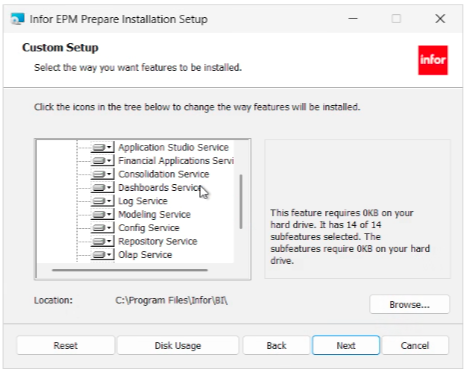
Figure 2: Prepare Installation, Custom Setup: all 14 of 14 subfeatures selected in the default location - Let the main setup run until Infor EPM Service Expert opens with "Let's set up your EPM Services farm!", then choose Create a new farm.
Which settings does Service Expert ask for when you create the farm?
Service Expert then walks through eight settings pages, from the farm type to the OLAP directories. Farm Deployment is the one choice you cannot undo. However, you can change the others later.
- On Farm Deployment, choose Standalone farm rather than Cloud-bound farm. The dialog warns "This is permanent! You cannot change this later!" A standalone farm supports Basic, IFS (local InforSTS) and LDAP web access security. A cloud-bound farm instead uses the Infor Federated Services security of an existing tenant in Infor Cloud. In that case, only Basic is possible for client access security.
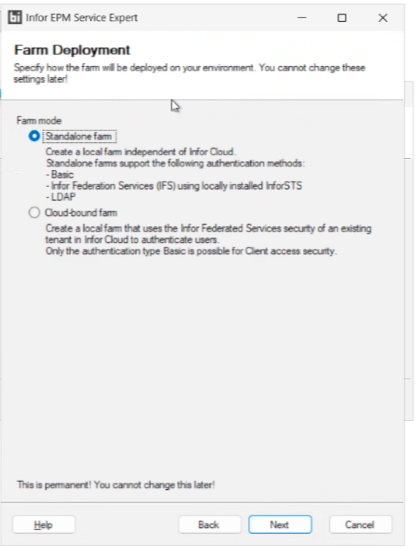
Figure 3: Farm Deployment: Standalone farm selected. You cannot change the choice later - On Web Access Settings, set the Dashboards Public URL and the Office Integration Public URL to the Application server name. The session time-out defaults to 30 minutes. Also note the maximum request length, because it caps uploads to the farm, including OLAP database imports from EPM 11. Infor gives 800 MB as the on-premise maximum. You can change the setting later under Global Settings in Service Expert. On this farm the setting read 800 MB. With it, a 253 MB OLAP database import from EPM 11 went through without a change.
- On Service-to-Service Security, choose the security for traffic between services. This test farm used No security, which is a decision to revisit before production.
- On API Security, choose the API security. Service Expert labels the No security option "not recommended". Even so, this test farm used it, so production needs a decision.
How do you set Infor EPM 12 sign-in, certificates and directories?
Next come the sign-in method, the certificates, the service account and the OLAP directories.
- On Web Access Security, choose the sign-in method from Basic, Infor Federation Services and LDAP. This farm uses LDAP. With LDAP, Service Expert ticks the Use SSL/TLS Encryption option, and you cannot clear it. The page notes "You can change these settings later." However, the connection to the directory itself comes later, once the farm is running. For that step, see connecting Infor EPM 12 to Active Directory with LDAP.
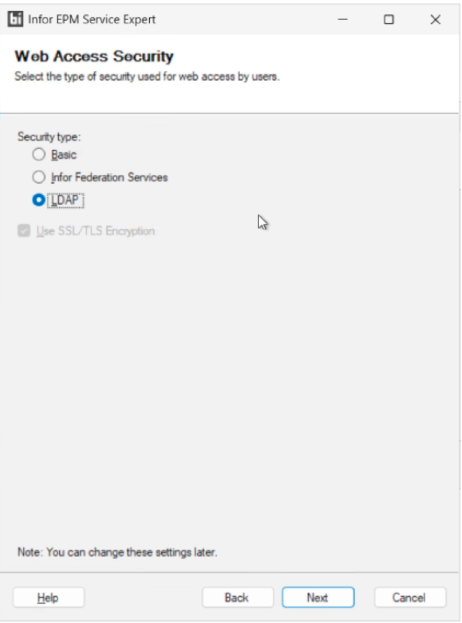
Figure 4: Web Access Security: with LDAP, Use SSL/TLS Encryption stays ticked and you cannot clear it - On Security Certificates, choose Generate a new certificate for the master certificate and for the web access certificate, each with a password.
- On Service Controller, choose the account the services run under: Local System account or This account with a password. The page notes "You can change these settings later." This test farm used the Local System account.
- On Directories, enter the UNC paths for the OLAP Service directories. Use
\\<OLAP server>\centraldbas the Database central directory and\\<Application server>\backupas the Backup directory. Leave the Local directory local,c:\infor\olap\localdbby default. The page says "The same path will be created on all machines on which OLAP databases can run." This installation kept the local defaults,c:\infor\olap\centraldbandc:\infor\olap\backup, and that is what blocked the OLAP server from joining later. The fix follows below.
How do you create the farm databases and save the farm keys?
The last pages create the configuration and log databases on the Database server and write the two files that protect and extend the farm: Master.keys and Connection.farmprofile.
- On Database for Configuration Service, click Specify Database. In the Database Connection dialog, choose Microsoft SQL Server and select the Database server. Then tick Enter a system user, enter the SQL Authentication login and password, and click Validate. Expect "The connection test was successful." The database is BIFarmConfig.
- Next, on Database for Log Service, repeat the same steps. The database is BIFarmLog.
- On Overview, check the configuration summary. Then set a password and a save location for the Master keys file and for the Connection profile. Both save locations default to the installing administrator's Documents folder. Click Create.
- Read the Master Keys confirmation. It warns that the master keys file and its password are the only way back to the encrypted farm data. Then click Create.
- On Farm Created, expect "The farm was created successfully." and "The farm profile has been saved to:" followed by the save folder. Click Close.
How do you register the services and finish the setup?
With the farm created, register the services on the Application server and let the setup finish, which opens Farm Expert.
- In the Service Expert console, check the Service Controller: "Service is running", Startup type Automatic and port 8000. Also check the Configuration Service at
http://<Application server>:8100/. Then choose Services, Register All. The OLAP Cluster Node warning triangle turns green during registration. - In the Infor EPM Finalize Setup wizard, expect "Completed the Infor EPM Finalize Setup Wizard.", leave Launch Farm Expert ticked and click Finish. The main setup window then shows "Installation Successfully Completed".
What are Master.keys and Connection.farmprofile, and where should they go?
Master.keys is the master keys backup file, the way back to the encrypted data in the farm databases if the farm breaks. Connection.farmprofile is the connection profile that every additional server loads to join the farm. Both carry a password, and the Overview step writes both. Both also default to one person's Documents folder.
- Master.keys: a KEYS file of about 1 KB that you need to recover the farm. So losing it or its password means losing the encrypted farm data.
- Connection.farmprofile: a FARMPROFILE file of 918 bytes on this farm, which every joining server needs. So losing it or its password stops new servers from joining.
- Where to keep them: move both files out of the installing administrator's Windows profile to a secured, backed-up location. Then record both passwords in the organization's password vault.
How do you configure the Infor EPM 12 farm in Farm Expert?
Farm Expert configures the farm repository and the standard applications in seven pages. They are General Configuration, Plug-ins and Clients, Repository and Access, Standard Applications, Staging, EPM Business Applications and Web Address. Infor's own summary: "You use Farm Expert to configure the farm repository and standard applications."
- General Configuration: select the connection "Farm at" followed by the Application server name and click CONNECT. Until you connect, Back and Next stay disabled.
- Plug-ins and Clients: Farm Expert installs the content plug-ins by default, and you cannot clear them. They are Application Studio Service, Administration Service, Modeling Service, Dashboard Navigation, Consolidation Service, EPM Applications Service and Ad-hoc. Likewise, the Application Studio and Process Editor client is a fixed item. On leaving the page, Farm Expert asks "Changes in content plug-ins are not applied until you restart dashboard workers. Do you want to restart dashboard workers?" Yes applies the plug-ins now; No leaves them until the dashboard workers next restart.
- Repository and Access: click Database. Then, in Create Repository Database, select the Database server and the same SQL Authentication login, and click Validate. The result reads "Database 'BIFarmRepository'" on the Database server. On the same page, change the password of the built-in administrator account, Admin, which ships with a preset password. Then store the new one in the password vault.
- Standard Applications: EPM Administration and Office Integration are mandatory. Self-Service and Samples, however, are optional, and Farm Expert ticks them by default.
How do you set up staging and the web address?
The last three pages set where source data lands, whether Business Modeling goes in, and then the farm's address.
- Staging: set the standard staging database, BIFarmEPMStaging, on the Database server. The Farm Expert page describes it: "The staging database is used in relational modeling. In this database, you can create tables to provide data before loading it into the integration tables of the EPM business application or into custom OLAP cubes and dimensions. The staging database also contains system tables for logging and modeling." This is where data from the source systems lands before it reaches the OLAP cubes.
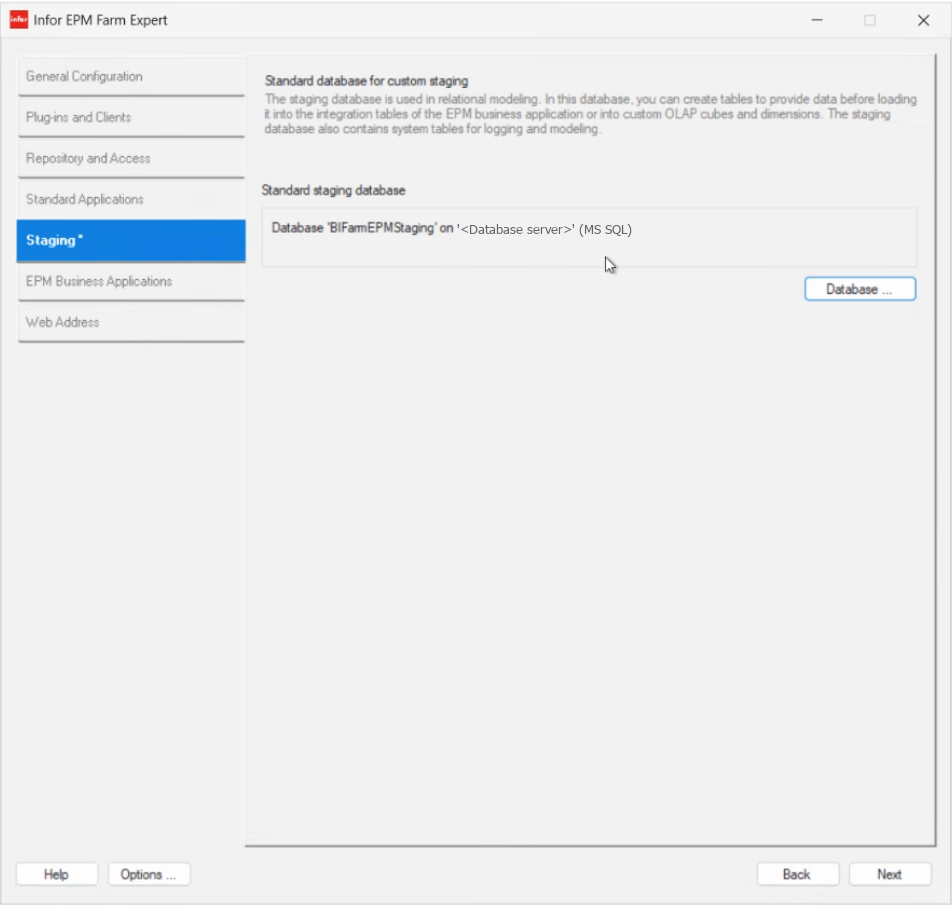
Figure 5: Farm Expert, Staging: the standard staging database BIFarmEPMStaging on the Database server - EPM Business Applications: tick Install only if you run Business Modeling applications: Budgeting and Planning, Workforce Budgeting or Consolidation. This farm left it unticked (the page reads "Not installed" beside the build), so the farm has no Modeling or Consolidation journal databases.
- Web Address: Farm Expert confirms "You have successfully configured your farm. Use this url to address your farm." It then shows the EPM Dashboards address,
https://<Application server>:9205/, with Copy URL and Open in Browser. The address is HTTPS because LDAP forces SSL/TLS on web access. As a result, browsers warn until you replace the generated certificate.
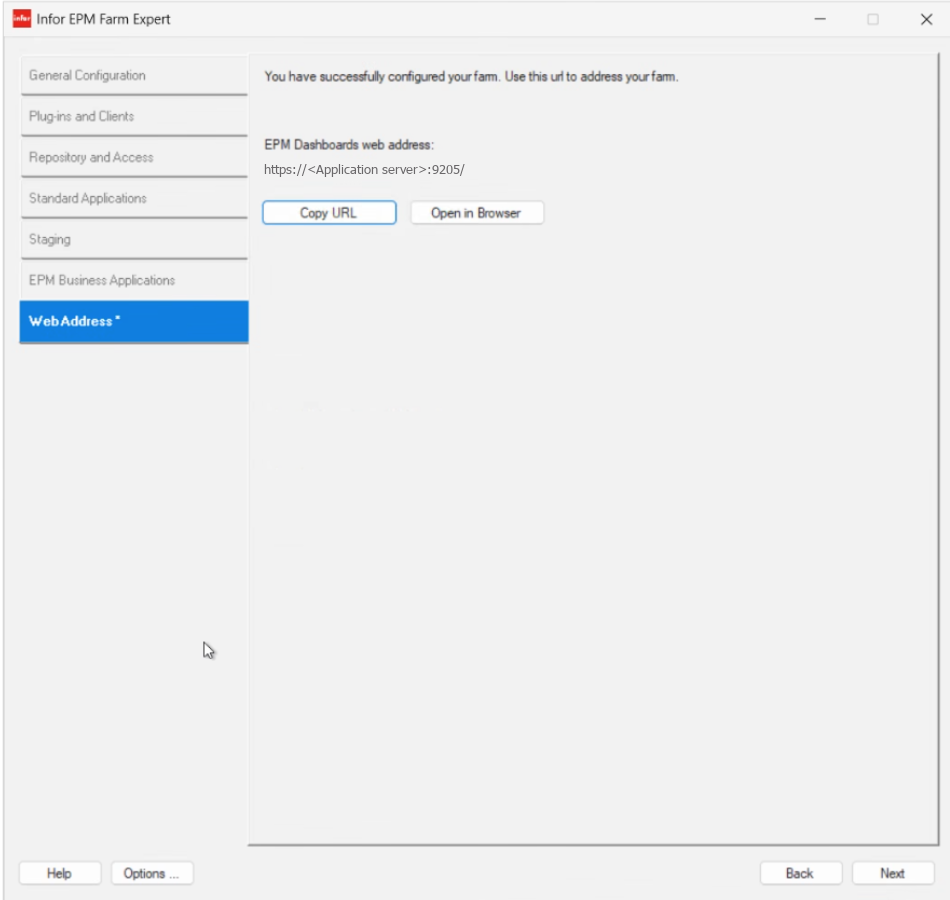
Figure 6: Farm Expert, Web Address: the last of the seven pages, with the EPM Dashboards address on port 9205
How do you join the OLAP server to an Infor EPM 12 farm?
To join the OLAP server, first install the same package with all services. Next, choose Join an existing farm in Service Expert and load the Connection.farmprofile file saved on the Application server. Then connect to the Configuration Service on port 8100, and register only the OLAP services on that machine.
Infor recommends this route for multiple machines: install everything, then register only what each machine runs. In its words: "You can install the services separately by running the setup for all services on all machines, but registering only the services you require on each machine. We recommend that you use the Setup_dEPM_Services.exe file and then, after the setup of all services is finished, register the services you require." Source: Infor EPM documentation, Installation: Installation procedure for multiple machines. Because every machine has every service, you can register a skipped service later in Service Expert on that machine.
- Copy Connection.farmprofile from its secured location to the OLAP server.
- Run the same setup on the OLAP server. In Prepare Installation, keep all 14 of 14 subfeatures selected, with the same default location.
- Near the end of the main setup, an Information dialog says "Go through the configuration of Infor EPM in Service Expert and Farm Expert to finish the installation process." Click OK. However, the installation is not complete at this point.
How do you load the farm profile and connect?
From here, Service Expert on the OLAP server does the join, so have the profile's password ready.
- In Service Expert, choose Join an existing farm ("Select this option to add services installed on this computer to an existing farm on a remote computer.").
- On Connection Configuration, click Load Profile, select Connection.farmprofile and enter its password. Until you load a profile, Connect stays disabled.
- Check the loaded values: the connection profile names the farm, Server is the Application server and Port is 8100. Also, Security matches the farm's service-to-service setting, No Security on this test farm.
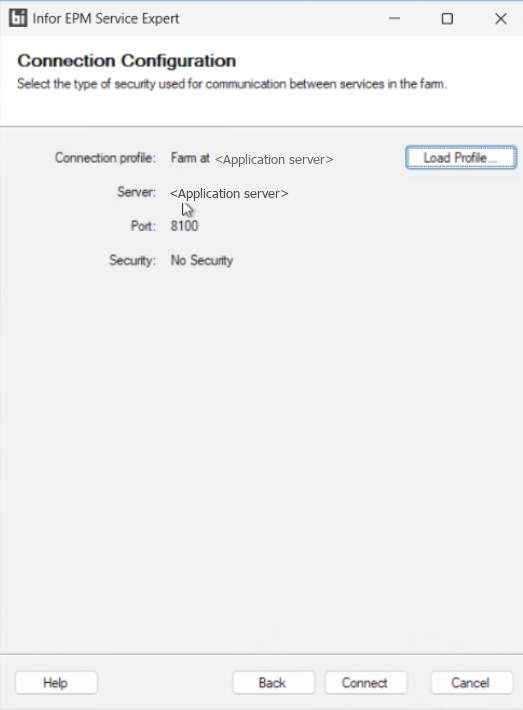
Figure 7: Connection Configuration on the OLAP server after Load Profile: Application server, port 8100 - Click Connect. On success, the result page reuses the create-farm wording: "Farm Created" and "The farm was created successfully." On a joining server, that means the join succeeded. The page also shows "The farm profile has been saved to:" followed by the installing administrator's Documents folder.
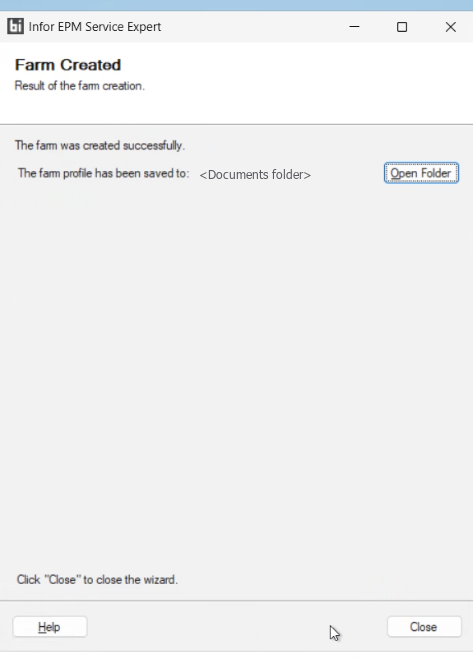
Figure 8: After a successful join, Service Expert reuses the Farm Created wording
If the first server uses local OLAP folders, however, Connect fails at step 7 with the error in the next section.
"Cannot join the farm because it is not using shared paths for OLAP central and backup folders"
This error appears on the OLAP server when you click Connect in Service Expert's Join an existing farm flow. The dialog says "Join operation failed. See the application log for more details." The details read:
[E][2026-10-14][09:37:35.382][# 10][ ] Error while joining current machine to existing farm. See the log for more details.
[E][2026-10-14][09:37:35.382][# 10][ ] 0 -> FarmManagementException: Error while joining current machine to existing farm. See the log for more details.
[E][2026-10-14][09:37:35.382][# 10][ ]    at Infor.BI.Farm.Configuration.FarmSetup.FarmSetupService.JoinFarmAsync(FarmConnectionOptions data, IProgress`1 progress, CancellationToken cancellationToken)
[E][2026-10-14][09:37:35.382][# 10][ ] 1 -> InvalidOperationException: Cannot join the farm because it is not using shared paths for OLAP central and backup folders.
This is an Infor EPM 12 Service Expert farm-join error, not a SharePoint farm backup or SQL Server backup share error.
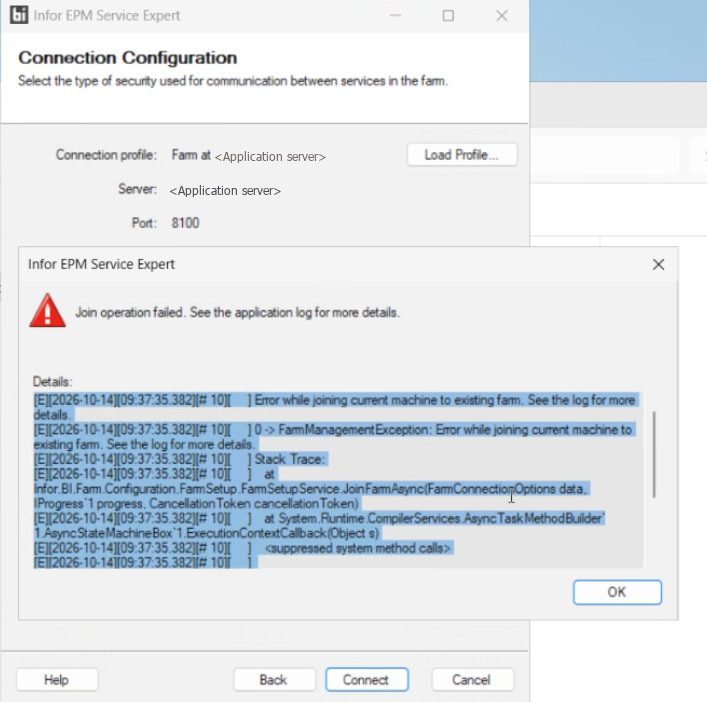
In the dialog, the Details pane opens on the first log lines and the stack trace. The InvalidOperationException line that names the cause sits further down, so scroll to the end of the details.
Why does the OLAP join fail?
The join fails because the farm runs on local OLAP folders, c:\infor\olap\centraldb and c:\infor\olap\backup. However, a farm with more than one machine that can run OLAP needs both folders on a shared UNC path. Every OLAP Service worker and cluster node must reach that path, so Service Expert refuses the join.
Infor states the requirement in its prerequisites under "Central database directory for OLAP": "A central location for database and backup root must be available. OLAP Service worker and cluster nodes must have access to this location." The Directories page also hints at it, with "The same path will be created on all machines on which OLAP databases can run." In contrast, the local directory, localdb, stays local.
How do you fix it?
Share the existing folders in place and give the farm machines access. Then switch the Directories page to the UNC paths and retry the join. Sharing in place means you copy no data, because the content already sits in the folders you share.
- On the Application server, share
C:\infor\olap\centraldbin place as\\<Application server>\centraldb(folder Properties, Sharing, Share). - Share
C:\infor\olap\backupin place the same way, as\\<Application server>\backup. - Grant both shares access to the account the Service Controller runs as on every farm machine. With the Local System account, that means the computer accounts of the Application server and the OLAP server.
How do you point Infor EPM 12 at the shared folders?
Once the shares exist, the farm only needs the new paths, and then the OLAP server can retry the join.
- In Service Expert on the Application server, open Directories. Enter
\\<Application server>\centraldbas the Database central directory and\\<Application server>\backupas the Backup directory. Leave the Local directory unchanged. Also leave Protect Local DB directory as it is. Its description reads "Only the account under which the service runs can access the folder." This farm left it unticked. A warning triangle appears beside each UNC field.
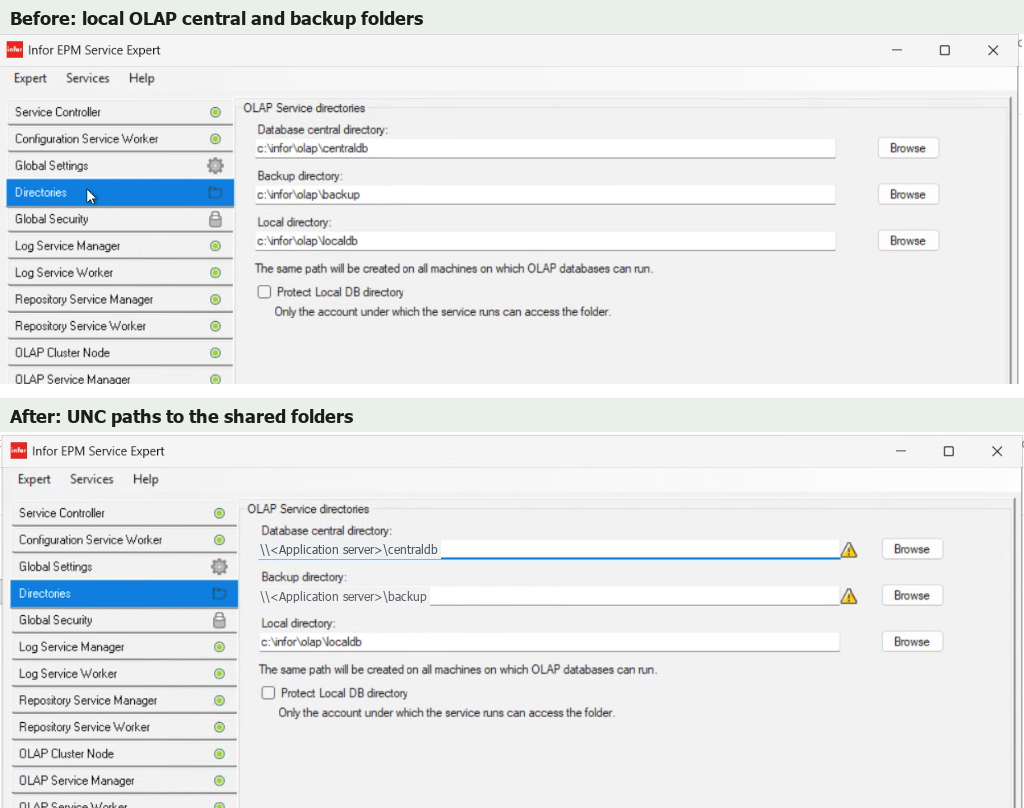
Figure 10: Directories before and after the fix: local OLAP folders, then UNC paths to the shared folders - Click Apply. Service Expert asks: "You have changed path to OLAP central storage and path to OLAP backup directory. Database files stored in the old location will no longer be accessible. Do you really want to apply the changes?" Click Yes. Yes is safe here because the shares are the same physical folders. So the old location and the new UNC path hold the same files. If you created the shares somewhere else, copy the files there before clicking Yes.
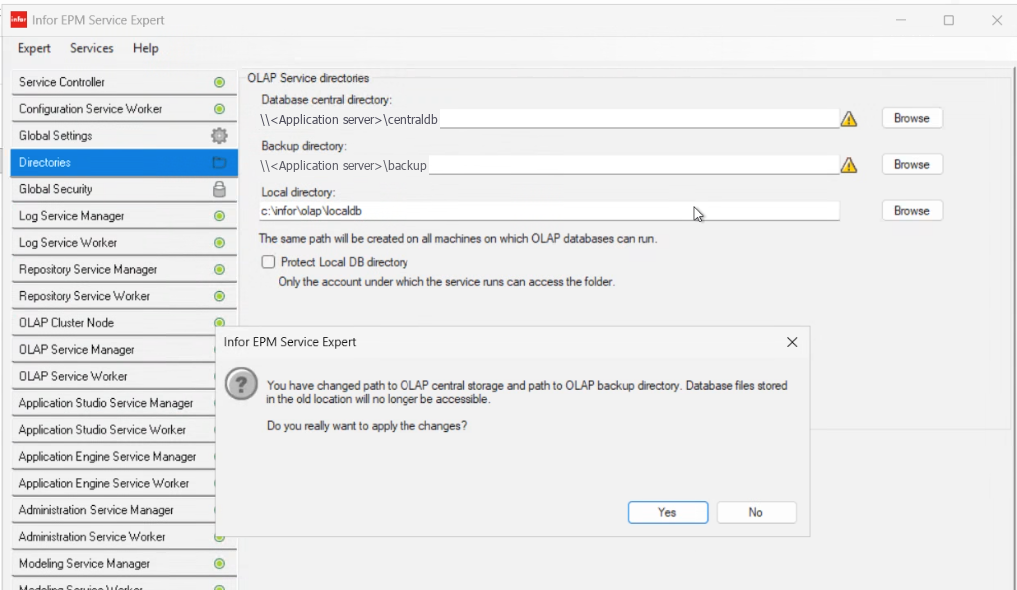
Figure 11: The confirmation Service Expert shows when the OLAP central and backup paths change - Finally, on the OLAP server, retry Connect. Expect "Farm Created" and "The farm was created successfully."
Is sharing the folders in place a lasting fix?
Sharing in place is the quickest fix, because it changes a path rather than moving data. However, the OLAP database files then live on the Application server, on the same machine as their backups. This farm therefore treats it as an interim state. It moves the central database directory to the OLAP server, as the next section describes. On a new farm, you can avoid the error entirely. Simply enter the final UNC paths on the Directories page during the first server's install.
Where should the OLAP central and backup folders live?
Host the central database directory on the OLAP server. Then keep the backup directory on a different machine, here the Application server. As a result, the OLAP database files sit on the machine that runs the OLAP databases. Losing the OLAP server also does not take its backups with it.
To move the central database directory once the farm is running:
- In EPM Administration, open Dashboards, OLAP, Databases ("Manage database nodes and users"). Then stop each OLAP database with the Stop button in its row: the square in a circle beside the arrow. EPM Administration asks first, in a Stop the Database dialog: "You are going to shut down database 'Samples'. If there are users connected to it they may lose their work. Do you really want to shut down the database?" Click OK. On a new farm the only database is Samples. On a production farm, however, warn users and stop databases in a maintenance window.
- On the OLAP server, create the central database folder and share it as
\\<OLAP server>\centraldb. Then grant access to the account the Service Controller runs as on every farm machine. With the Local System account, that means the computer accounts of the Application server and the OLAP server. - Next, copy the contents of the current central directory into the new share.
How do you switch Infor EPM 12 to the new central directory?
With the files copied, change one path in Service Expert, and then check it from the other machine.
- In Service Expert, open Directories and change only the Database central directory to
\\<OLAP server>\centraldb. Leave the Backup directory as\\<Application server>\backup, then click Apply. Because only one path changed, the confirmation is shorter than before: "You have changed path to OLAP central storage. Database files stored in the old location will no longer be accessible. Do you really want to apply the changes?" This time, Yes is safe only because you copied the files first. Leave the old folder in place until the databases run from the new one. That way, you can go back by setting the old path again. Infor's Configuration Service topic lists the OLAP database directories in the farm configuration. The Configuration Service stores that configuration in a database, so the setting belongs to the farm, not to one machine. To check, open Directories in Service Expert on the other farm machine and confirm it shows the new central path.
How do you move the OLAP databases onto the OLAP server?
Finally, take the Application server's cluster node out of the farm, so that the databases start on the OLAP server.
- Next, open the Application server's own OLAP Cluster Node in Service Expert on that server. If it still shows as registered, click Unregister, so that the OLAP server's cluster node is the only one. Service Expert warns: "When unregistering a service from the farm, it can no longer be started. This might break the farm, if it is the last service of this type. Are you sure you want to unregister this service?" OK is safe only while another cluster node stays registered, here the OLAP server's. Register on the same page undoes it.
- Finally, start the databases again on the Databases page. A stopped database shows Offline, and the same row button becomes Start. Then check that each one comes back Online. Also check that the Cluster Nodes and Database Workers panels name the OLAP server's node. On this test farm, Samples came back Online with its only cluster node and database worker on the OLAP server.
Which OLAP services should run on the dedicated OLAP server?
On this farm, the OLAP server runs three registered OLAP services: OLAP Cluster Node, OLAP Service Manager and OLAP Service Worker. Every other service sits on that machine but stays unregistered. That is the install-everything, register-what-you-need approach Infor recommends.
- After the join, the OLAP server's Service Expert console shows the Service Controller running, with Startup Automatic and port 8000. Log On As shows LocalSystem, the same account as the Application server. The Configuration Service sits at
http://<Application server>:8100/. The Information panel also shows the machine's Service ID and machine name. Every service is grey, which means not registered, and OLAP Cluster Node carries a warning triangle.
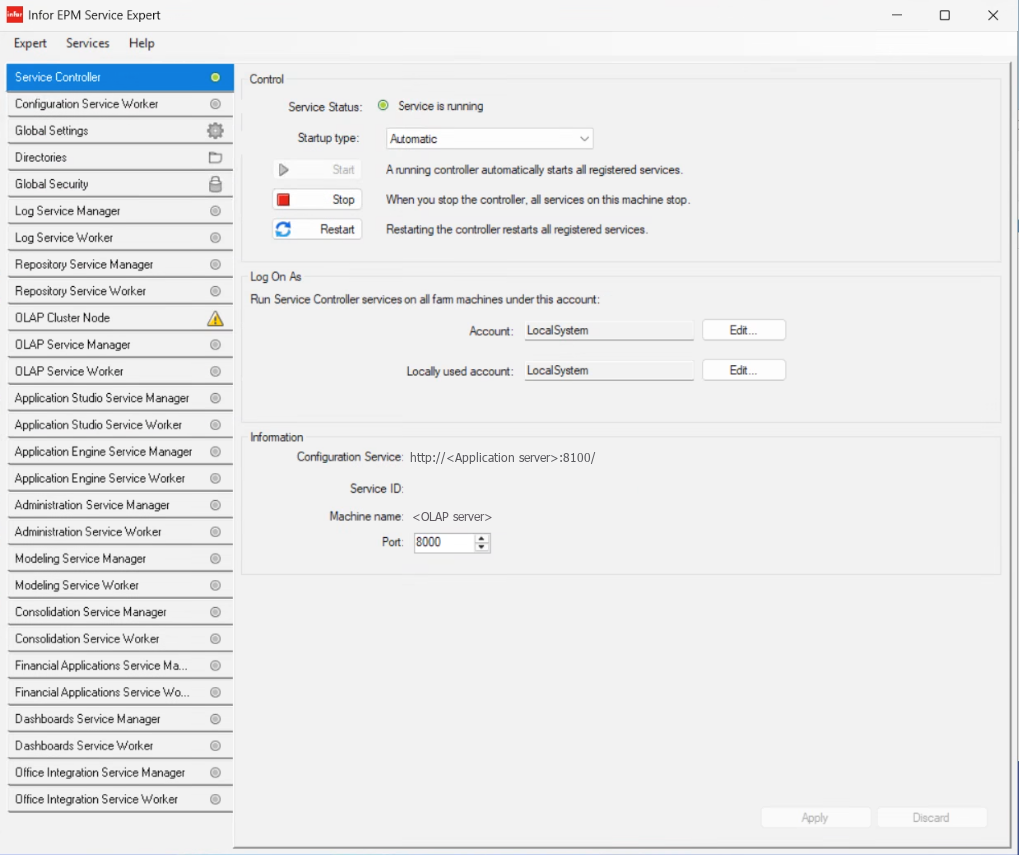
Figure 12: The OLAP server's Service Expert console right after the join: controller running, services not yet registered - Open OLAP Cluster Node. The status warning reads "The controller is not registered as a cluster node." Click Register. The node turns green.
- Next, open OLAP Service Manager. The status reads "Service is not registered". The page also lists the default ports: HTTP 8200, API 8201, Web 8205, MCP 8206 and Infrastructure 8209. Click Register.
- Then open OLAP Service Worker, with HTTP 8210, API 8211, Web 8215 and Infrastructure 8219. Click Register.
- Finally, check that all three OLAP services are green and that the other services stay unregistered.
Should OLAP also run on the Application server?
Infor's documentation reads two ways on where OLAP belongs. On one hand, the "Primary server" description places everything except OLAP and the scaling-server workers on the primary server. That puts all OLAP services on the OLAP server. On the other hand, the "Private network" description lists OLAP Service manager and worker on the primary server. It also says "The OLAP server is for the database workers and cluster nodes." Database workers are what the Database Workers panel on the OLAP Databases page lists for each database. Both readings describe supported topologies.
This farm ends up on the second reading. The OLAP server runs the cluster node and the database workers, plus its own OLAP Service Manager and Worker. Meanwhile, the Application server keeps its OLAP Service Manager and Worker registered, with its OLAP Cluster Node unregistered. However, registering the services on the OLAP server is not the whole job. The Application server's own OLAP Cluster Node stays registered after Register All. As a result, it keeps running the databases until you unregister it, as the check in the next section shows.
How do you check the Infor EPM 12 farm is working?
Open the Services dashboard in EPM Administration and confirm that both machines are Online and every service is green. Then open the Applications page and confirm that the four standard applications are Online. Infor names the same check: "You can check if the new service is part of your farm by opening the Services dashboard in EPM Administration."
- In a browser, open
https://<Application server>:9205/and go to Dashboards, Farm Administration, Services. The page describes itself as "Services: Manage the services of the farm and monitor the status of managers and workers." - In the Machines panel, expect 2 machines, the Application server and the OLAP server, both Online.
- In the Services panel, expect every service green. The list includes Administration, Application Engine, Application Studio, Configuration, Dashboards, Financial Applications, Financial Consolidation, Log, Modeling, Office Integration and OLAP, among others.
- Select the OLAP server in the Machines panel. Its Managers panel shows OLAP, Online, which confirms that the OLAP server has the OLAP services registered.
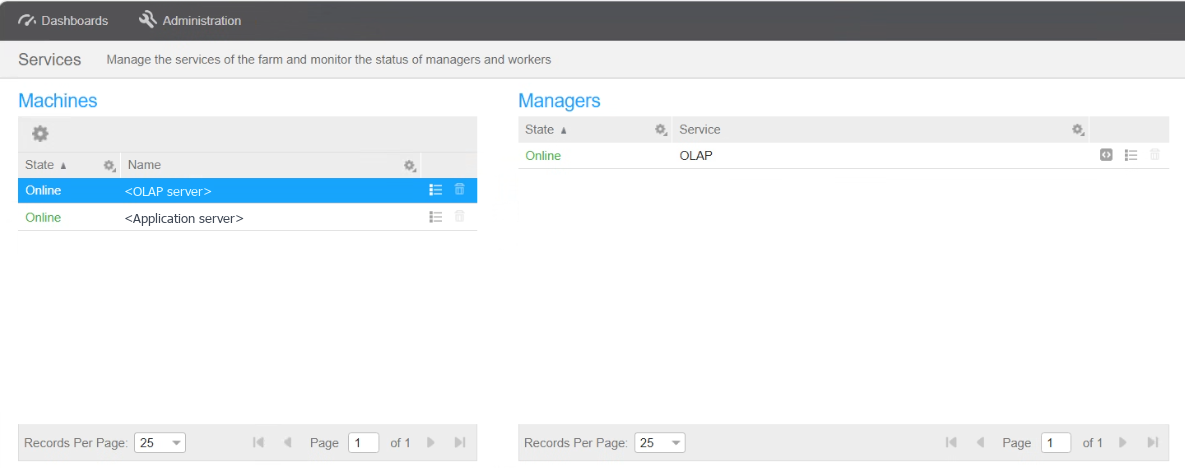
Figure 13: Services dashboard: two machines Online, and the OLAP manager Online on the OLAP server - Next, check where the OLAP databases actually run. Open Dashboards, OLAP, Databases and select a database. Then read the Cluster Nodes and Database Workers panels, which name the machine. On this test farm, Samples still ran on the Application server's cluster node after the OLAP server joined, not on the OLAP server. After the team unregistered that node and restarted Samples, both panels named only the OLAP server's node. The Services dashboard shows which machine registers each service, while the Databases page shows which machine loads the data. So check both.
How do you check the Infor EPM 12 standard applications?
Last, confirm the four standard applications, because they carry their own builds.
- Finally, open
https://<Application server>:9205/BIApplicationManager. It lands on EPM Administration, Applications ("Deploy, update and configure applications"), where you check the four standard applications in the table below.
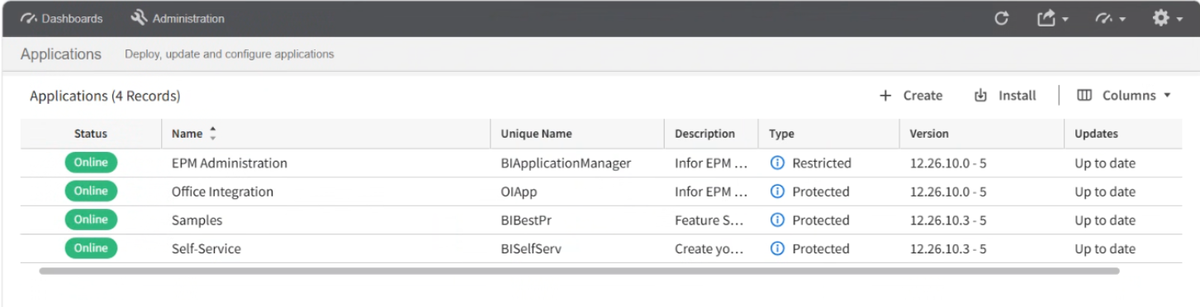
| Name | Unique name | Type | Version |
|---|---|---|---|
| EPM Administration | BIApplicationManager | Restricted | 12.26.10.0 - 5 |
| Office Integration | OIApp | Protected | 12.26.10.0 - 5 |
| Samples | BIBestPr | Protected | 12.26.10.3 - 5 |
| Self-Service | BISelfServ | Protected | 12.26.10.3 - 5 |
The versions match the Standard Applications page in Farm Expert and the package's Version.txt. Finally, Infor's multi-machine procedure ends with one more step: "Adjust your load balancing metrics according to the number of scaling servers, and run the script." The script sits in Infor's Adjusting the number of machines topic. It runs against the BIFarmConfig database, with the number of scaling servers as its parameter. Afterwards, you restart the farm. Check whether your farm needs it: this one has no scaling server.
With the farm verified, the installation is complete. Connecting it to Active Directory, so that users sign in with their own accounts, has its own guide: how to connect Infor EPM 12 to Active Directory with LDAP.
What should you change before taking Infor EPM 12 to production?
A test farm built with defaults leaves several decisions open. Make each one deliberately before you install the production farm. These are the items to decide, not a fixed list of answers, because the right choice depends on your network and security policies.
- Service-to-service and API security: decide whether production keeps No security between services and on the API. Note that Service Expert labels the API's No security option "not recommended".
- Web access certificate: browsers warn on the generated web access certificate, so decide whether to replace it with a CA-signed one.
- Share permissions: grant the OLAP central and backup shares only to the Service Controller's account, on the share and on the folder. With the Local System account, that means the computer accounts of the farm machines, not Everyone.
- Service Controller account: decide between the Local System account and a domain service account. A domain account is the usual choice when services must reach network resources under a known identity. Examples are file shares and source connections.
Which Infor EPM 12 farm layout and data decisions remain?
Next come what runs where, and where the data and the keys live.
- Samples on production: decide whether the optional Samples application belongs on the production farm or only on test.
- OLAP on the Application server: this test farm unregistered the Application server's OLAP Cluster Node, so OLAP databases run only on the OLAP server. It kept the Application server's OLAP Service Manager and Worker registered, which matches Infor's private network layout. Production keeps the same split. Check the Databases page after every change.
- OLAP data location: decide which drive holds the central database directory on the OLAP server and the backup directory on the Application server. The defaults use the C: drive instead.
- Master keys and connection profile: decide where the production farm's Master.keys and Connection.farmprofile will live and who holds their passwords. Do it before the Overview step writes them.
Which sign-in decisions remain before production?
Finally, two sign-in points remain to decide.
- LDAP sign-in: this test farm signs users in with Basic Authentication on port 389, which sends sign-in passwords to the domain controller unencrypted. It also points at a single domain controller. Both are production decisions, set out with the options in the Infor EPM 12 LDAP guide.
- Built-in Guest user: the farm ships with a Guest basic user beside Admin. Review what it can reach before production.
A separate guide covers moving EPM 11 content onto the new farm, from the OLAP databases to the reports.
Cipher implements Infor EPM. The farm in this guide is part of a side-by-side move from EPM 11 to EPM 12 on-premise. If you are planning the same move, we can review your current farm, your platform versions and your topology. We can then map the install, the content move and the cutover before anyone touches anything. Read more about our Infor EPM consulting. For ImportMaster and OLAP on the previous release, also see our hands-on account of loading SyteLine data into Infor d/EPM 11.