
This guide sets up Infor EPM 12 LDAP sign-in against Active Directory. It is for the administrator of an installed Infor EPM 12 on-premise farm that uses LDAP as its web access security. The next job is connecting the farm to the directory, so that users sign in with their own accounts. If you have not built the farm yet, start with how to install Infor EPM 12 on-premise on a three-server farm.
Tested on Infor EPM 2026.10.01 (services build 12.26.10.5), October 2026.
In short
- Where: the LDAP provider lives in EPM Administration, under Dashboards, Farm Administration, Repository, in one dialog with four tabs.
- What worked:
sAMAccountNameas the user name,objectSIDas the IDs, Membership from Groups ticked and the domain root as the Root Directory. - Who gets access: register Active Directory groups, not people. Members then sign in with their plain account names and take the group's EPM groups and roles.
- Decide first: the User Name attribute, because a registered user keeps the name it had at registration.
- Before production: Basic bind on port 389 sends passwords to the domain controller unencrypted. So decide the bind method before go-live.
In this guide
- Connecting Infor EPM 12 to Active Directory
- Configuring the LDAP provider settings
- Registering Active Directory groups and signing in
- The LDAP settings that work
- Basic LDAP authentication and production
- The LDAP errors and their fixes
- The SSO provider sign-in error
Last updated: October 2026. Reviewed by: Cipher Infor EPM consulting team.
What does Infor EPM 12 LDAP setup need from the directory team?
Before you start, agree the Active Directory details with the directory team. You need a read-only bind account and the base DN, then a domain controller and its port. You also need the Active Directory groups that will hold EPM users. Also settle which Active Directory attribute becomes the EPM user name before you register anyone. Registered users keep the name they had at registration. Finally, the Application server needs port 389 open to the domain controller, or 636 for LDAPS. The bind account and every user sign-in use it.
How do you connect Infor EPM 12 to Active Directory with LDAP?
Open EPM Administration, go to Dashboards, Farm Administration, Repository, and open the settings of the LDAP authentication provider. Next, fill its four tabs: General, Users, Groups and Authentication. Then run Test Connection. Finally, register Active Directory groups in Users, Groups and Roles. Members of a registered group then sign in with their own account names.
This step completes the LDAP choice you made on the Web Access Security page during the first server's install. That page only sets the farm's sign-in mode. However, Infor's standalone-farm topic has you configure the directory connection once the farm is complete. Until then, you cannot add any directory user or group. Source: Infor EPM documentation, Administration: Configuring the LDAP authentication.
How do you configure the Infor EPM 12 LDAP provider settings?
The provider settings sit on the Repository dashboard, in one dialog with four tabs. Fill all four before testing.
- In a browser, open
https://<Application server>:9205/BIApplicationManagerand go to Dashboards, Farm Administration, Repository ("Manage authentication settings and handle pending operations").
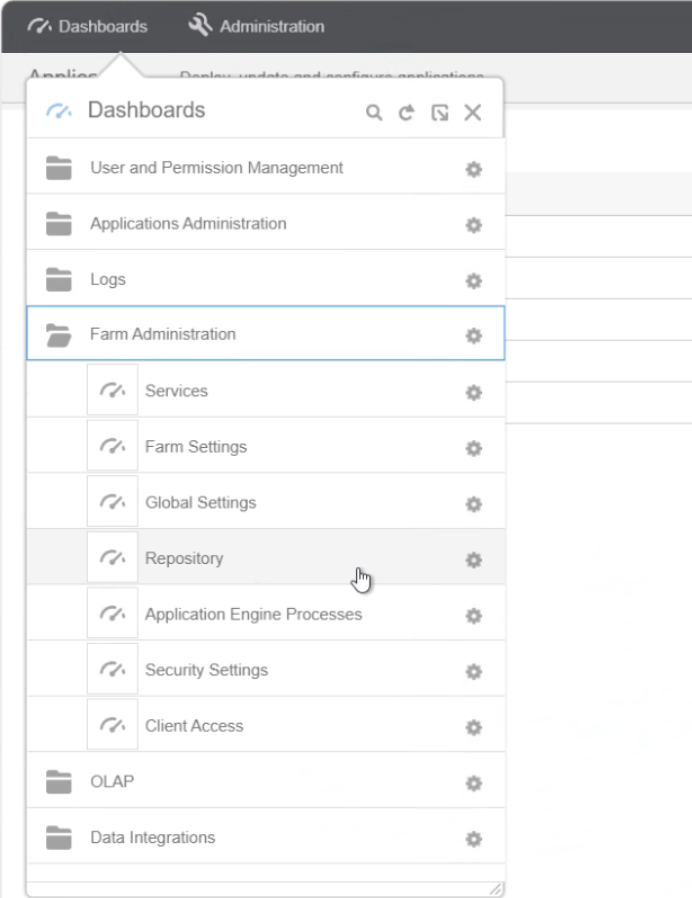
Figure 1: Dashboards, Farm Administration, Repository: where you configure the LDAP provider - In the Authentication Provider Settings widget, the Authentication System column lists Basic, Infor Federation Services and LDAP. On this farm, the Basic and LDAP rows showed a tick, but Infor Federation Services did not. Leave Basic ticked until an Active Directory administrator has signed in, so the built-in Admin keeps a way in. Then click the Settings gear on the LDAP row to open LDAP Authentication Provider Settings.
- On General, enter the Server Name, the Port (389 by default) and the Root Directory. Then, under Administration, enter the bind account's User Name and Password. Enter the bind account as
DOMAIN\account: on this farm a bare account name returned "Invalid credentials" with the right password. The Root Directory bounds the group search as well as the user search. So this farm uses the domain root rather than the OU that holds the users. The Password field showed five masked characters on first opening, and five again after saving a password. So read nothing into them.
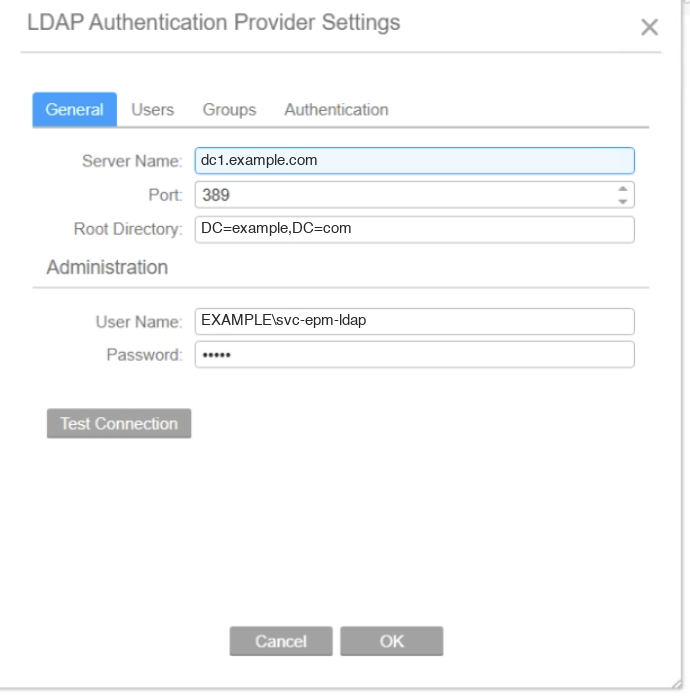
Figure 2: General tab. The server, root directory and bind account are example values in place of this farm's real entries
How do you fill the Users and Groups tabs?
Next, the Users and Groups tabs tell EPM which Active Directory attributes to read.
- On Users, enter the person filter and the attributes from the table below. Then tick Membership from Groups, which greys out Group Membership. On this tab, User Name is the Active Directory attribute that holds the sign-in name, not an account to type in. In build 12.26.10.5, the User ID field shows the label Label_User_ID instead. That label is an untranslated stand-in for "User ID", and it is harmless. Also, Test Connection checks the whole form before it connects. With the Users tab still empty, it switches to that tab without a message. It then outlines Filter, Group Membership, User Name and Label_User_ID in red.
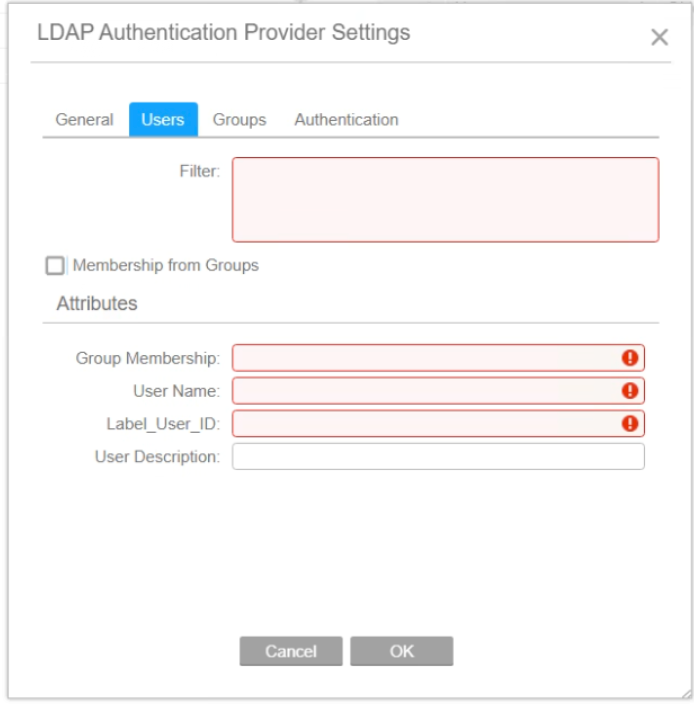
Figure 3: Test Connection on an unfilled form: the dialog switches to the Users tab and outlines the required fields in red, including the untranslated Label_User_ID 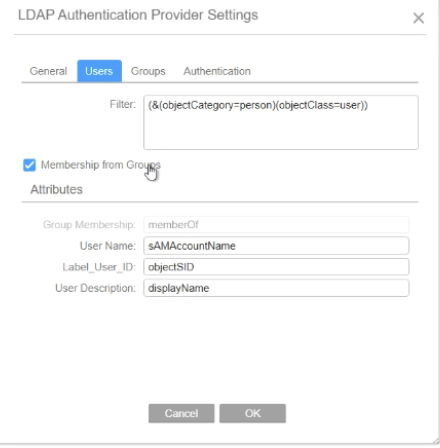
Figure 4: Users tab as it works on this farm: Membership from Groups ticked, so Group Membership turns grey - On Groups, enter the group filter and the User Membership, Group Name, Group ID and Group Description attributes. The Users and Groups tabs have identical-looking Filter boxes, so check which tab the dialog highlights before typing. Map Group Description and User Description to attributes every object has filled.
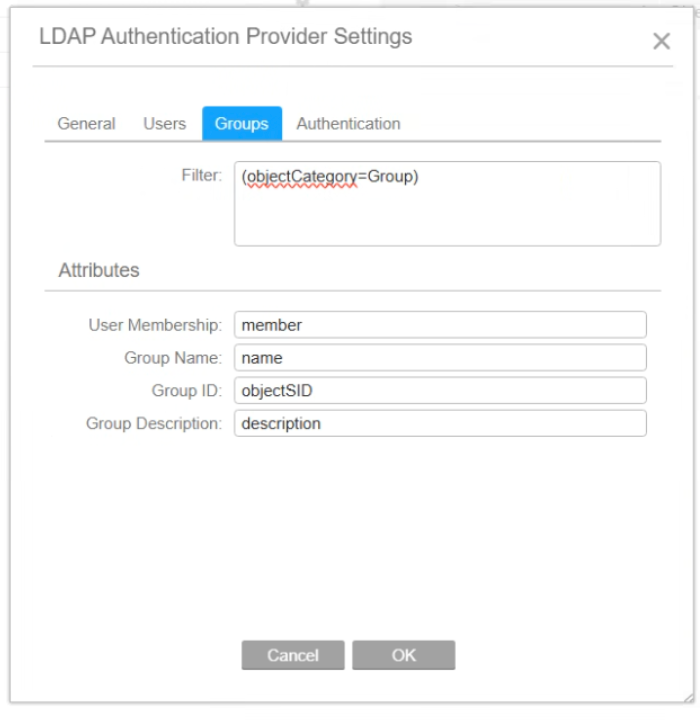
Figure 5: Groups tab as first filled. Group Description shows description here; the farm later remapped it to an attribute every group has
How do you set authentication and test the Infor EPM 12 LDAP connection?
Finally, choose the bind method and test the whole form.
- On Authentication, the tab opens with Basic Authentication (Simple Bind) ticked and every other option greyed. They are Secure, with its Sealing and Signing options, Anonymous, Use SSL, Fast Bind, Server Bind, Delegation and Read-only server. Infor's LDAP topic says Basic disables the other options. This farm signs users in with Basic only. The security trade-off follows after the settings table below.
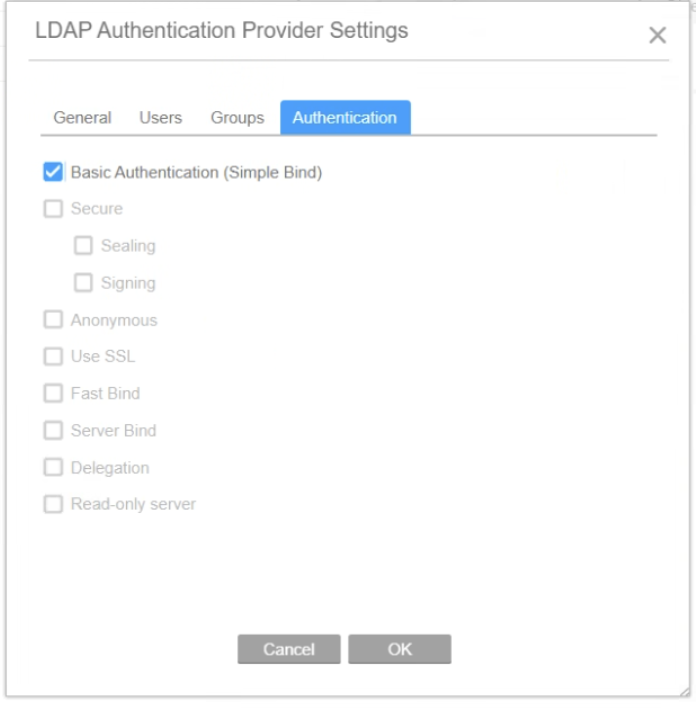
Figure 6: Authentication tab: with Basic Authentication (Simple Bind) ticked, every other option turns grey, Use SSL included - Click Test Connection. Expect a Connection Test dialog reading "The test connection was successful." Then click OK to save the provider settings.
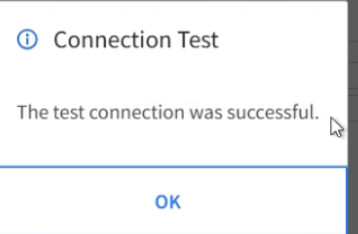
Figure 7: Test Connection after the fixes: "The test connection was successful."
How do you register Active Directory groups and sign in?
With the provider saved, register Active Directory groups in Users, Groups and Roles and give each group its EPM groups and roles.
- Open Dashboards, User and Permission Management, Users, Groups and Roles. On a new farm the Users panel lists two basic users, Admin and Guest. Choose + Add, Register LDAP Users and User Groups; the other entry, Create Basic User, makes a local account.
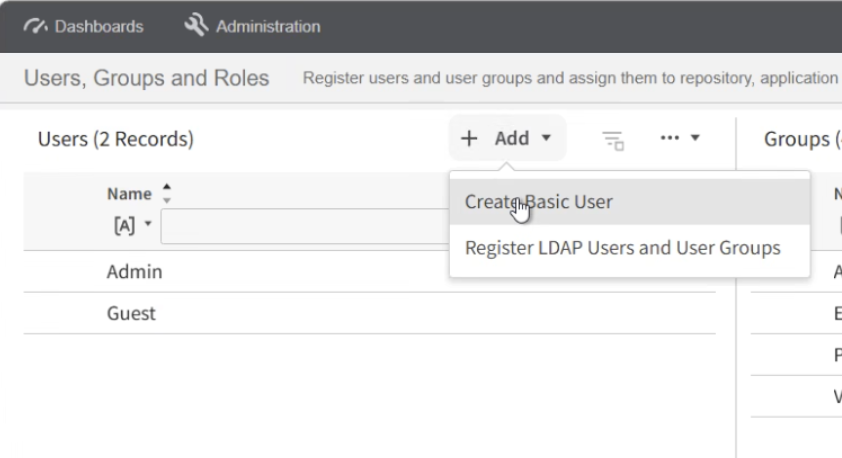
Figure 8: Users, Groups and Roles on a new farm: two basic users, Admin and Guest, and the Add menu - In the Register dialog, use "Search for Users and User Groups" (search box, Type Any, Search). Then move the groups you need into "Users and User Groups to be Registered" with the arrow buttons, and click OK. Register Active Directory groups, not individual people. On this farm, the registered group appeared in the Users panel beside Admin and Guest. Meanwhile, the Groups panel lists EPM's own groups: Administrators, Every SSO User, Power Users and Viewers.
- Select the registered group in the Users panel and tick its EPM groups, for example Administrators for an administrators group. Every SSO User shows as ticked and greyed already. Then, on the Application Roles tab, tick its roles in each application. On this farm the application showed five built-in application roles: AdministratorRole, DesignerRole, MasterRole, ModelerRole and ViewRole. Click Save, because Infor EPM stores nothing until then.
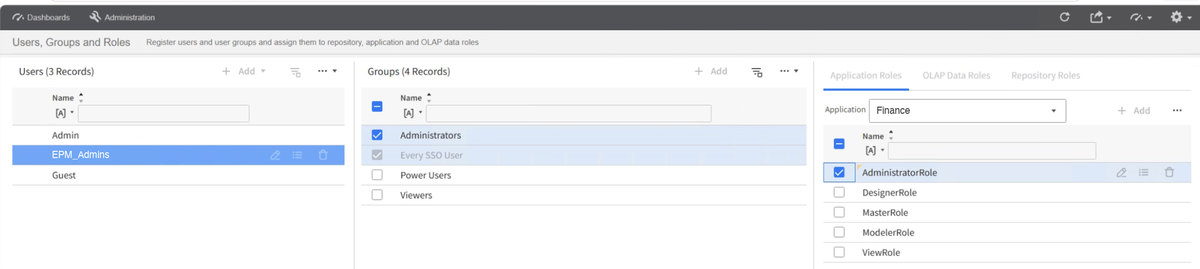
Figure 9: A registered Active Directory group selected, with its EPM group and application role ticked. Group and application names are placeholders
How do members of an Active Directory group sign in?
Members sign in with their own accounts, so test with one before you hand the farm over.
- Finally, sign in as a member of the group with the plain account name. Use the application's address,
https://<Application server>:9205/<application>, or EPM Administration. Members of a registered group sign in without being registered themselves, and take the group's EPM groups and roles.
Which Infor EPM 12 LDAP settings work on this farm?
The working configuration on this test farm, with example values in place of the real domain, server and account names:
| Tab and field | Value on this farm |
|---|---|
| General: Server Name | One domain controller's name, for example dc1.example.com |
| General: Port | 389 |
| General: Root Directory | The domain root, for example DC=example,DC=com. An OU here limits the group search as well as the user search |
| General: User Name and Password | A read-only bind account entered as DOMAIN\account, for example EXAMPLE\svc-epm-ldap, and its password |
| Users: Filter | (&(objectCategory=person)(objectClass=user)) |
| Users: Membership from Groups | Ticked, which greys out Group Membership (memberOf) |
| Users: User Name | sAMAccountName, so users sign in with the plain account name |
| Users: Label_User_ID (User ID) | objectSID |
| Users: User Description | displayName |
| Groups: Filter | (objectCategory=Group) |
| Groups: User Membership | member |
| Groups: Group Name | name |
| Groups: Group ID | objectSID |
| Groups: Group Description | An attribute every group has filled, such as name |
| Authentication | Basic Authentication (Simple Bind) only |
Why settle the user name before you register anyone?
Choose the User Name attribute before you register anyone. A registered user keeps the name it had at registration. For example, this farm switched User Name from userPrincipalName to sAMAccountName. However, the user registered earlier only took the plain account name after the team deleted and registered it again. The team then had to set its groups and roles again.
Infor's LDAP topic adds that once you register LDAP, basic users can still sign in. However, they need the prefix basic: in front of the user name, so the built-in administrator becomes basic:Admin. That is the behaviour Infor documents. On this test farm, the built-in administrator signed in through the Basic provider after LDAP was on. However, the notes do not record whether that sign-in needed the prefix.
Is Basic LDAP authentication safe for production?
The security trade-off is a production decision, not a detail. With Basic Authentication (Simple Bind) on port 389, passwords travel from the Application server to the domain controller unencrypted. That covers the bind account's password and every user's sign-in password. Only the browser leg is HTTPS. Basic also greys out Use SSL in this dialog, so you cannot combine the two here. Test Connection did pass on this farm with Secure, Sealing, Signing and Server Bind ticked. However, nobody has retried user sign-in under Secure since the team ticked Membership from Groups. That retry is the next test. If it works, Secure is the production setting. If not, production needs another route, such as asking Infor about a simple bind over LDAPS on port 636.
One more production point: this test farm points at one domain controller's name, a single point of failure for sign-in. The domain's DNS name lets any domain controller answer. So if you switch to it and Server Bind has a tick, clear it.
Which Infor EPM 12 LDAP errors came up, and how was each one fixed?
Five errors came up on this test farm, in this order. The first four are quick to fix once you know the cause. The fifth, the sign-in error, has its own section below.
- Test Connection jumps to the Users tab: no message appears, and the dialog switches to the Users tab with the required fields outlined in red (Figure 3). Test Connection checks the whole form before it connects, so fill the Users and Groups tabs first.
- "Invalid credentials": a dialog titled Administration reads "Message: Configuration of authentication system 'LDAP' is not valid. Details: Invalid credentials." On this farm, the bind account went in as a bare account name. Entering it as
DOMAIN\account, with the same password, fixed it. However, nobody tested whether the user principal name form also works.
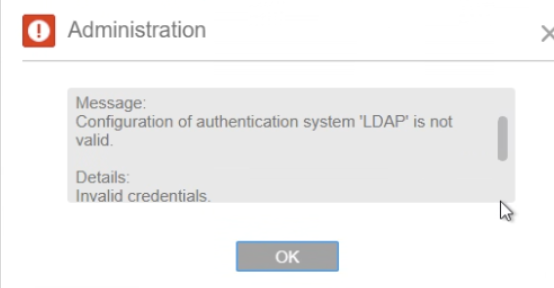
Figure 10: The bind account entered without its domain gives "Invalid credentials"
Why are groups missing, and what do the log rows mean?
The next two errors concern the group search and the logs.
- The Register dialog lists users but no groups: the Root Directory pointed at the OU that holds the users, and the group search stays inside the Root Directory. Setting it to the domain root fixed it. Infor allows several roots separated by semicolons, so one OU for users and one for groups is the narrower option. With the domain root, the Register dialog shows every account and group in the domain. Even so, only registered ones get access.
- "No such attribute 'description'" in the logs: the Logs dashboard showed bursts of error rows from the Repository Service Worker. They came from component
Infor.BI.Repository.LdapSsoProvider.LdapHelper, code 2451, under the Admin user. The message names the attribute the provider did not find: description. Mapping User Description and Group Description to attributes every object has filled stopped the rows. However, sign-in still failed afterwards. So the rows were noise rather than the cause of the sign-in error.
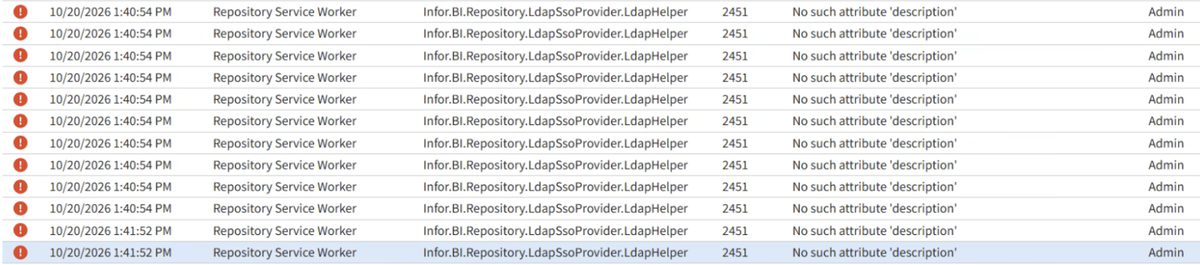
Figure 11: Logs dashboard: "No such attribute 'description'" rows from the LDAP provider, code 2451 - "Authentication failed due to an internal error in SSO provider. See logs for details.": see the next section.
"Authentication failed due to an internal error in SSO provider. See logs for details."
This message appears under the sign-in fields when an Active Directory user signs in through the LDAP provider. Meanwhile, the Open button keeps spinning. It is not a wrong-password message. On this test farm, two changes made together cleared it. The first was ticking Membership from Groups on the Users tab. The second was setting the Authentication tab back to Basic Authentication (Simple Bind) only. However, the test did not isolate which of the two fixed it.
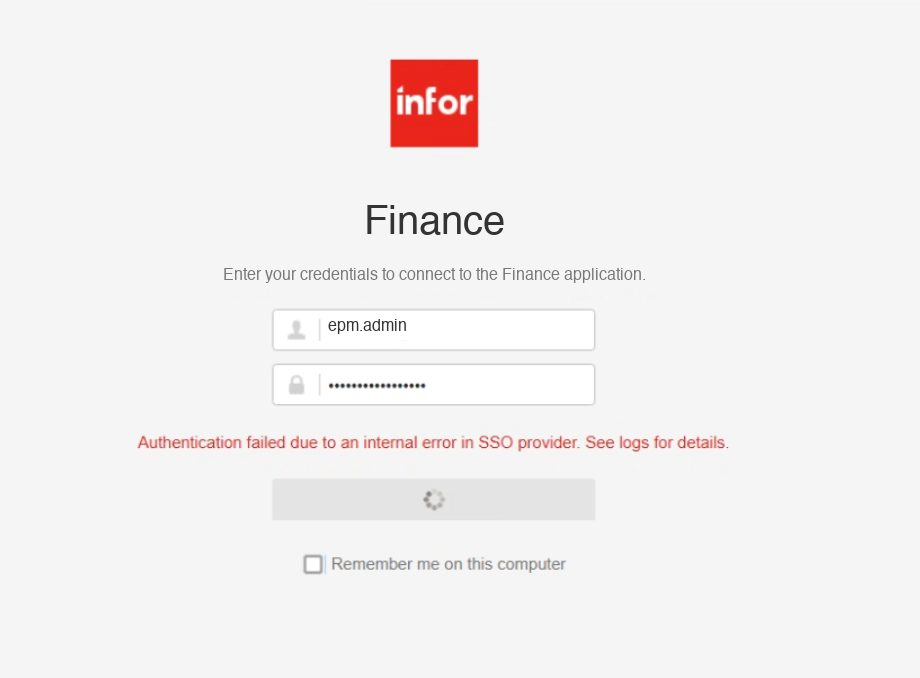
The matching entry on the Logs dashboard is only a wrapper and does not carry the inner cause:
Authentication failed due to an internal error in SSO provider. See logs for details.
0 -> AuthenticationException: Authentication failed due to an internal error in SSO provider. See logs for details.
Stack Trace: at Infor.BI.Repository.Core.Authentication.CustomProviderAuthenticationHelper.DoLoginAsync(AuthenticationCredentials credentials)
What did not clear the SSO provider error?
Before the fix, none of these cleared it:
- every user-name format: userPrincipalName, the plain account name and DOMAIN\name
- Basic and Secure bind, each with Membership from Groups cleared
- signing in at EPM Administration as well as at the application's address
- registering the user on its own, then deleting and registering it again
- restarting the Repository Service Manager and Worker
- remapping the description attributes
The built-in administrator did sign in through the Basic provider. So the sign-in service itself was working, and only the LDAP path failed.
Which change most likely fixed Infor EPM 12 LDAP sign-in?
The results point at Membership from Groups. With it ticked, EPM reads each group's member list instead of the user's memberOf attribute. Basic had failed with it cleared, and so had Secure. That is a reading of the results, not a tested one. User sign-in may also need Basic. Since the change, members of a registered group sign in with their plain account names.
Cipher implements Infor EPM. Are you connecting an Infor EPM 12 farm to Active Directory, or choosing its production sign-in setting? Then we can review your directory layout and your farm before anyone changes anything. Read more about our Infor EPM consulting, or see the Infor EPM 12 on-premise installation guide for the farm itself.