
Infor d/EPM gives a finance team the planning, reporting and consolidation model that an ERP on its own does not provide. Getting ERP data into that model is a build, not a setting you switch on. What follows is an account of one such build: an Infor d/EPM 11 financial cube running on Infor SyteLine data, including the fifteen source tables it draws from, the thirteen dimensions it produces, the rebuild time it achieves, and the two errors that had to be cleared before anything would load at all.
Both systems are on-premise in this case. SyteLine and its SQL Server database, the d/EPM stack, the OLAP server, and the web services all run in the customer's own data center. Worth clearing up straight away: SyteLine is now sold as Infor CloudSuite Industrial, and that name does not mean the ERP has to run in the cloud. CloudSuite Industrial runs on-premise too, which is what it is doing here. Both names appear below, because both are still in everyday use.
The deployment matters for what follows, because most of the problems below are ones a cloud deployment never puts in front of you: patch levels you own, Windows services you have to start yourself, local groups, and NTFS permissions on a folder.
Cipher does not implement or resell the SyteLine ERP. We build the reporting, analytics, and planning layer on top of the ERP a customer already runs. On this project, the ERP team owned SyteLine, and we owned everything downstream of it, which is the usual shape of this work.
How do you load Infor SyteLine data into Infor d/EPM?
SyteLine data reaches Infor d/EPM 11 through a staging database rather than a direct connection. With both systems on-premises, stored procedures copy the general ledger tables out of SyteLine into SQL Server, database views shape them, Infor BI ImportMaster loads the results into the OLAP cube, and Infor BI Designer creates and maintains the hierarchies. A complete rebuild of the finance cube runs in under 90 seconds.
The environment, stated exactly
Version numbers matter more in this article than anything else in it. Two of the three problems below were version problems wearing a different costume, and the advice that follows only holds for a stack that looks like this one.
| Layer | Version |
|---|---|
| Operating system | Microsoft Windows Server 2019 Datacenter |
| ERP | Infor SyteLine, version 2026.4.3.9, on-premise |
| Source database | Microsoft SQL Server 2014 SP1 (12.0.4100.1, X64), on-premise |
| EPM platform | Infor d/EPM 11.0.0, April 2016 base media, on-premise |
| Infor BI OLAP Server | patched to 11.0.0.359 |
| Infor BI ImportMaster | 11.0, base at Fixpack 3, Connect at Fixpack 4 |
| Infor BI Application Studio | 11.0.0 build 236, installed under Program Files (x86) |
Note the mixed bitness. Application Studio installs as a 32-bit application while the OLAP Server runs 64-bit on the same machine. That is how this release installs, and it is worth knowing before you start chasing interface errors.
Why does Infor BI OLAP Administration report "Class does not support Automation or does not support expected interface"?
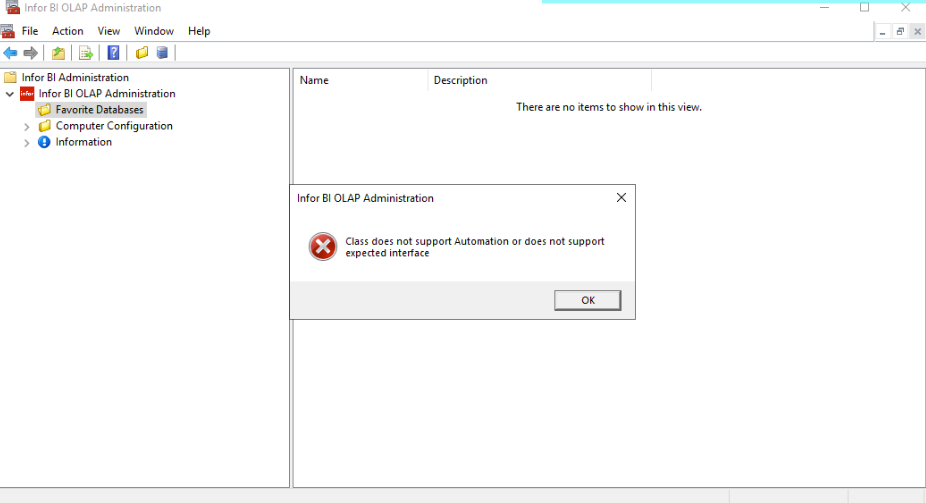
Because the OLAP services are not running. The message is a generic COM error surfaced through the product rather than raised by it, so it reads like a broken component registration and sends most administrators off to re-register DLLs or hunt for a 32-bit against 64-bit mismatch. On this server, the registration was fine. The engine simply was not up.
The console shows the symptom clearly once you know what you are looking at. Favorite Databases is selected, the result pane reads "There are no items to show in this view", and the error appears on open. Nothing was ever enumerated because there was nothing to enumerate from.
The check: is the OLAP engine actually running?
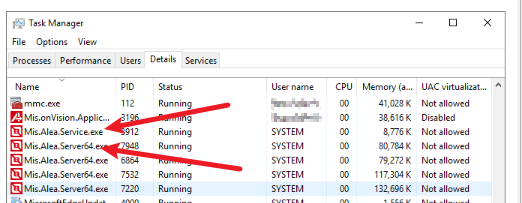
The check that actually tells you something is Task Manager, on the Details tab. Look for Mis.Alea.Service.exe, which is the service controller, and the Mis.Alea.Server64.exe instances that run alongside it. All of them run as SYSTEM. If they are absent, the OLAP engine is down and every other diagnosis is a detour.
Why the processes are called Mis.Alea
Those process names surprise people, so it is worth explaining them. The Infor BI OLAP engine descends from the MIS Alea product line, which is why the running processes carry a Mis. prefix that appears nowhere on the box. ImportMaster has a similar history: its release notes carry a Cubeware copyright, its libraries are named with a cw prefix, and its fixpack installer prompts you to update something it calls "C8 Connect", which is the component Infor ships as Infor BI ImportMaster Connect. None of this is trivia. It is why the names in Task Manager, in the install folder, and on the product page do not match each other.
The fix: patch the OLAP Server to 11.0.0.359
The fix was to install the Infor BI OLAP 64-bit patch, Setup_OLAP_64bit.exe, taking the OLAP Server to 11.0.0.359. This is the part worth pausing on: the d/EPM 11.0.0 DVD ships Infor BI OLAP Server at build 245. A base media install is therefore 114 builds behind on that component alone, and the symptom of that gap is not a version warning. It is a COM error that points at the wrong thing entirely.
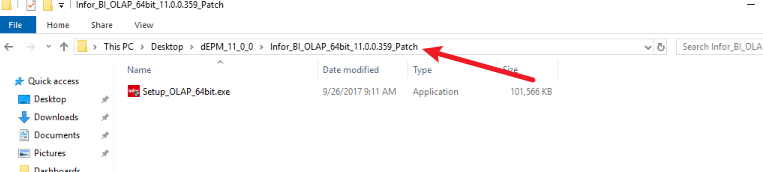
Verify by reopening the console after the patch. The service and server processes appear in Task Manager, and Favorite Databases populates.
Why does Infor BI Application Studio WebServices fail with "Error executing the request"?
The full message is "Error executing the request. Enable logging in Application Studio WebServices and try to reproduce the last error. See Application Studio WebServices help for details." It appears on the connect dialog after you choose a repository and click Connect, and the OK button stays greyed out because the selection never completes.
The message directs you to enable logging in WebServices. That is reasonable advice,
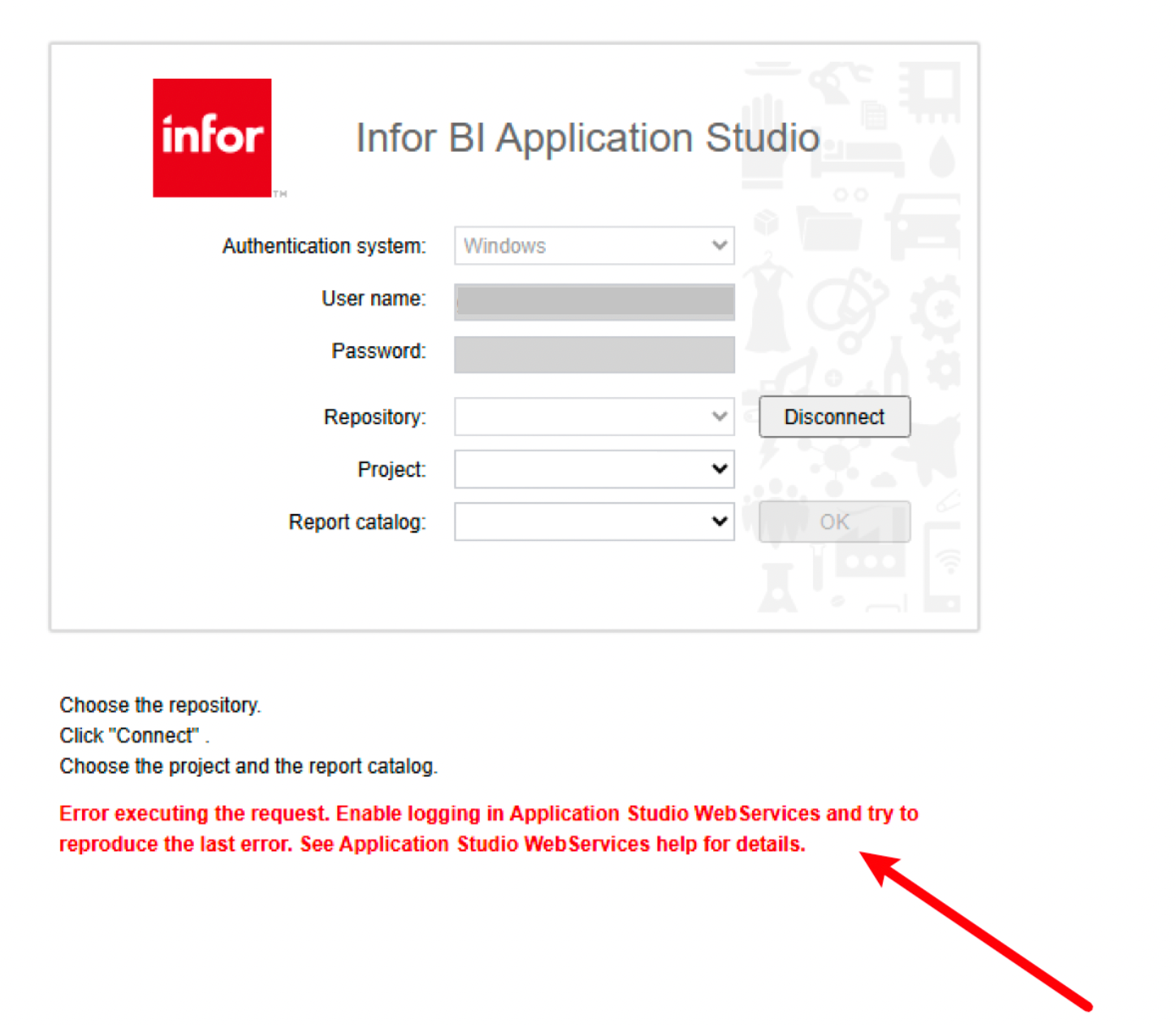
and it is not where the problem was. There were three separate faults, and all three had to be corrected before the client would connect.
Fault 1: connect by server name, not localhost
A network configuration on this server meant that over localhost the WebServices layer could not grant access to its own folder. Pointing the client at the machine name resolved that.
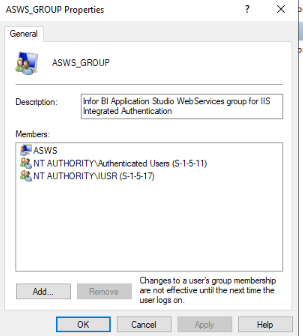
Fault 2: ASWS_GROUP is missing its members
The installer creates this local group and describes it in its own properties as the Infor BI Application Studio WebServices group for IIS Integrated Authentication. The members it needs are the WebServices service account, NT AUTHORITY\Authenticated Users and NT AUTHORITY\IUSR . Note the warning printed in that same dialog: changes to a user's group membership do not take effect until the next time the user logs on. Adding the members is not enough on its own.
Fault 3: ASWS_GROUP needs rights on the WebServices folder
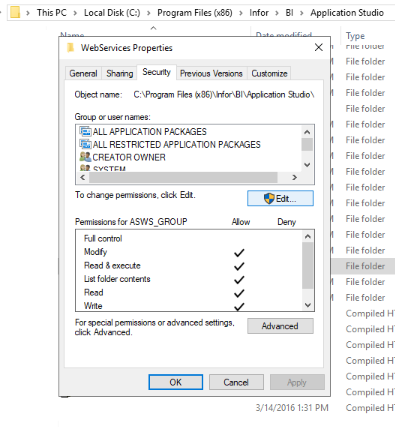
The folder is C:\Program Files (x86)\Infor\BI\Application Studio\WebServices. The working permission set for ASWS_GROUP is Modify, Read and execute, List folder contents, Read, and Write.
None of the three is named in the error text, which is the point. If a connection failure on Infor BI Application Studio survives a log review, check the hostname, the group, and the folder rights before going any further.
Which SyteLine tables feed an Infor d/EPM Custom financial cube?
Fifteen, on this build. They are all general ledger structures. Nothing here is manufacturing, inventory, or order data, because the model is a Custom financial one built for budgeting, planning, reporting, and consolidation.
| SyteLine table | What it carries | Where it lands in d/EPM |
|---|---|---|
| chart_mst | Chart of accounts | Account dimension |
| chart_bp_mst | Budget and plan accounts | Version dimension |
| unitcd1_mst to unitcd4_mst | The four user-defined GL segments | UnitCode1 to UnitCode4, four dimensions |
| site | Sites | Unit dimension |
| periods_mst | Fiscal calendar | Period and Year dimensions |
| per_sort_mst | Period ordering | Period dimension sequence |
| currency_mst | Currencies | Currency dimension |
| currate_mst | Exchange rates | XRate dimension |
| currparms_mst | Currency configuration | Model configuration |
| parms_mst | System parameters | Model configuration |
| perTot_mst | GL period balances | The cube facts |
| productversion | SyteLine version | Verification only |
Fifteen tables reconcile against thirteen dimensions, one fact source and the model configuration, with nothing left over. Two dimensions, Measure and Level, are structural and have no SyteLine source.
Two details in that table catch anyone arriving from a different EPM platform. Time is split into two dimensions, Year and Period, rather than one. And the four SyteLine unit codes become four separate dimensions, one each, which is the most SyteLine-specific decision in the whole model. If your chart of accounts leans on unit codes, that mapping is the part of this build worth studying.
One more practical note. productversion is where the SyteLine version string lives, so a single select answers the question of what you are actually connected to.
How are the dimensions and hierarchies actually built?
By three components, each owning a different job. This is the division of labor that a first-time build usually gets wrong, because the natural assumption is that a single tool does it all.
- Stored procedures generate the dimension members from the staged SyteLine data, as executed by the import master.
- Infor BI Designer creates and maintains the hierarchies over those members.
- Infor BI ImportMaster orchestrates the run and loads members and facts into the cube.
The hierarchies are where the reporting value gets added, and they are worth looking at closely. The Account dimension carries more than one hierarchy over the same set of members. Alongside the main reporting hierarchy sits a second one holding Total Assets and Total Liabilities and Equity, which exists to prove the two agree.
More importantly, the Account hierarchy contains members that do not exist in SyteLine at all. EBITDA, gross profit percentage, and total other income are reporting structures built in Designer, not columns copied out of chart_mst. That is the practical answer to the question of why you would not simply report out of the ERP. The ERP holds the accounts. The model holds the financial logic.
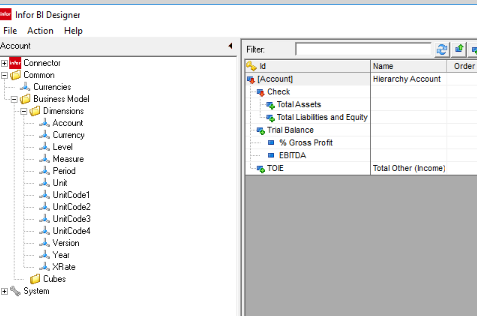
Dimensions also divide into two kinds. Twelve are dynamic and get rebuilt from ERP data on every run. The remainder are static, defined once, and left alone.
How long does a full Infor d/EPM cube rebuild take?
Under 90 seconds, on this build, for a complete rebuild from scratch. Not an incremental load. A single ImportMaster job, MainJob, stages the SyteLine data into temporary tables, creates the dimensions, erases the cube data outright and reloads all of it, then consolidates using ImportMaster scripts and stored procedures.
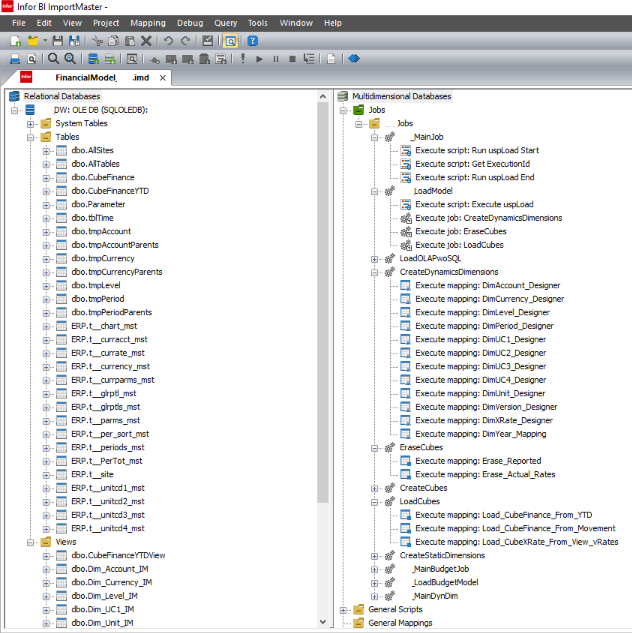
The finance cube loads from two sources: year-to-date balances and period movements. A separate rates cube loads from the exchange rate view. The connection into the staging database is OLE DB.
That 90-second figure is not a benchmark for its own sake. It is what makes the rest of the design possible. The rebuild runs two ways, and both are in production. It is scheduled nightly at midnight, so the cube is current every morning with nobody doing anything. It can also be triggered on demand from an Application Studio report, which covers what a schedule cannot: a correction or a late journal entry posted during the working day, where somebody needs the numbers now rather than tomorrow.
Between the two, a user never has to know or care when the last load ran. A rebuild measured in tens of minutes could only ever have been the nightly one.
What happens when SyteLine changes version?
Less than you would expect, and that is deliberate. Nothing in the d/EPM model reads SyteLine directly. Stored procedures drop the temporary tables in the staging warehouse and copy the SyteLine tables listed above into fresh ones. Views in a schema dedicated to the ERP source sit over those copies, and ImportMaster reads the views, never the ERP.
So when SyteLine changes version, the work lands in two places: the copy procedures and the view definitions. The mappings, dimensions and cubes above them are untouched. That is a contained, testable change instead of a rebuild. The same layer is what would absorb a move from on-premise to cloud, although this particular build is on-premise at both ends.
This matters because the two systems rarely move together. An ERP upgrade and an EPM upgrade are separate projects with separate budgets and separate timelines, and the layer between them is where the work lands. Cipher's SyteLine experience spans SyteLine 9 and 10, on-premise and cloud, alongside Infor EPM 11 and 12, and that connection surviving a version change is the specific problem we solve.
Where this fits
Everything above sits on top of an ERP that somebody else implements and maintains. That is the model for our Infor BI and Infor Dynamic Enterprise Performance Management work generally: the ERP stays where it is, and the planning, reporting, and consolidation layer gets built to fit it.
If you are running SyteLine and evaluating Infor d/EPM, or already running both and finding the connection between them fragile, we can walk through your environment and tell you what the build would involve.